
Why the MP4 Screen method works well in DaVinci Resolve
DaVinci Resolve is often where the final look of a music video comes together, so a Varya overlay should feel like part of the grade rather than a separate sticker. The MP4 Screen method is useful when you want fast results: export a bright visualizer on black from Varya, place it above the footage in Resolve, and use Screen composite mode to remove the black visually.
This workflow is not true alpha transparency. It works because Screen mode keeps bright pixels and drops black pixels. That makes it ideal for glowing rings, pulses, bars, particles, and other light-on-dark visualizers. If the overlay must preserve exact transparent edges for delivery, use the ProRes Resolve workflow instead.
Set up Varya for a clean MP4 overlay
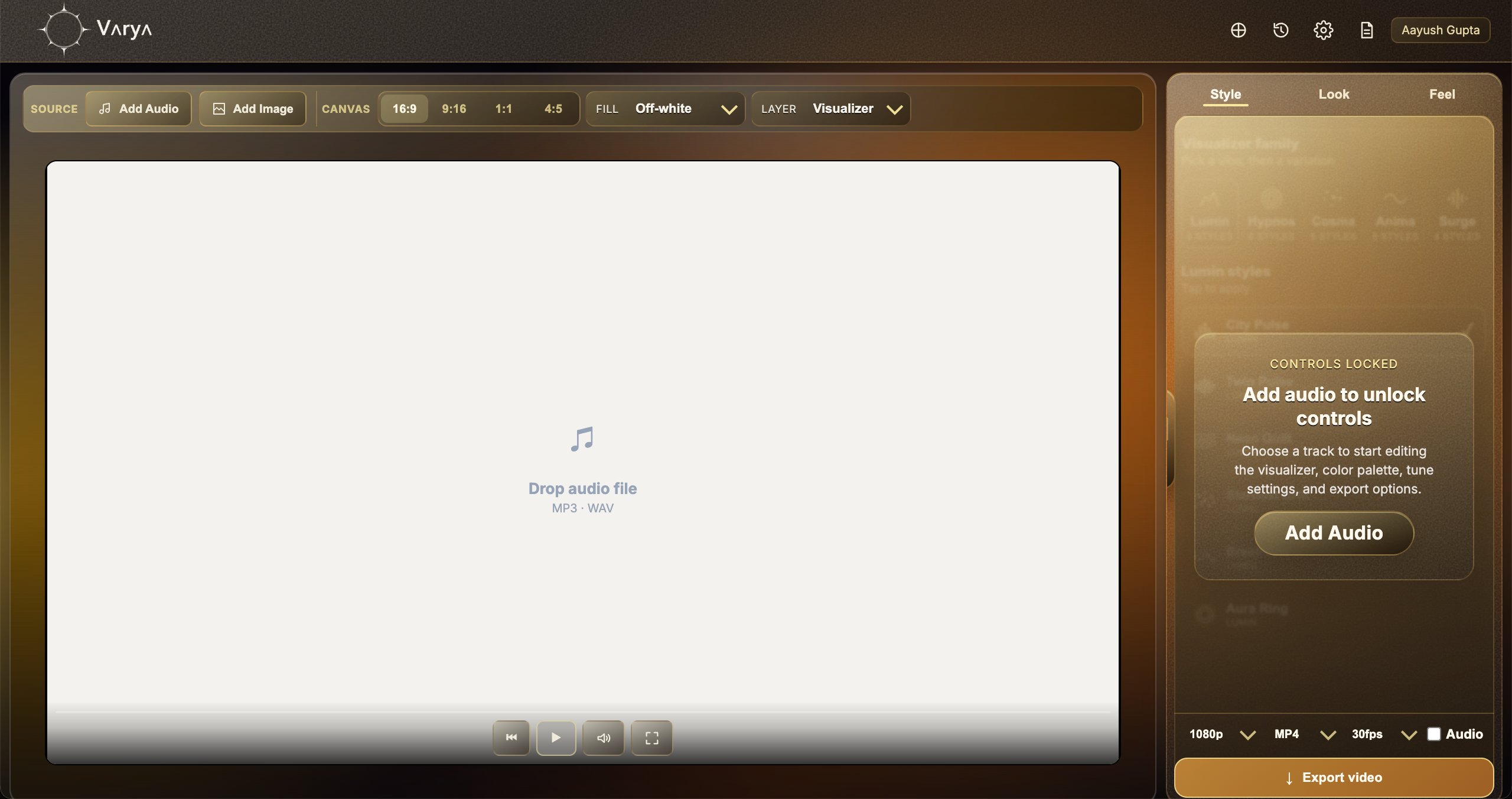
Open Varya, sign in, and add the track you want the visualizer to react to. The audio file is the source of the movement, so add it before spending too much time on styling. Then choose the canvas size that matches your edit. Use 16:9 for landscape video, 9:16 for vertical content, 1:1 for square posts, and 4:5 for portrait feed formats.
For this MP4 method, do not add a background image if the visualizer is supposed to sit over another video. Set the Varya background or fill to black. The black is not meant to be seen in the final edit; it is a technical background that gives Screen blending something clean to remove.
- Use black background for MP4 overlay exports.
- Use bright visualizer colors so Screen blending has visible pixels to keep.
- Avoid dark gray or low-contrast visualizers because they may disappear after blending.
- Match the Varya canvas to your DaVinci Resolve timeline or composition.

Design the visualizer so it blends with the edit
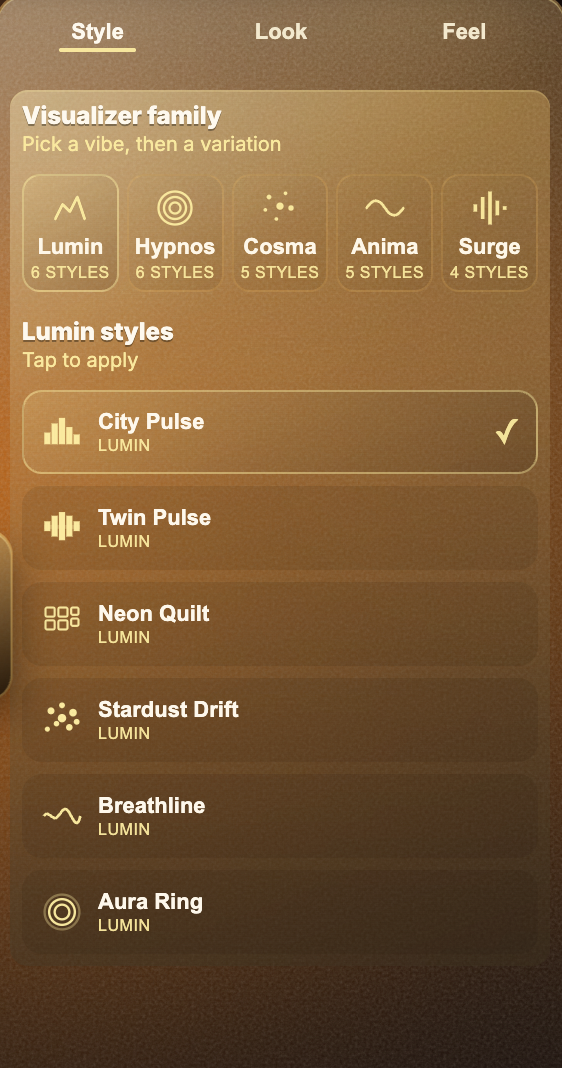
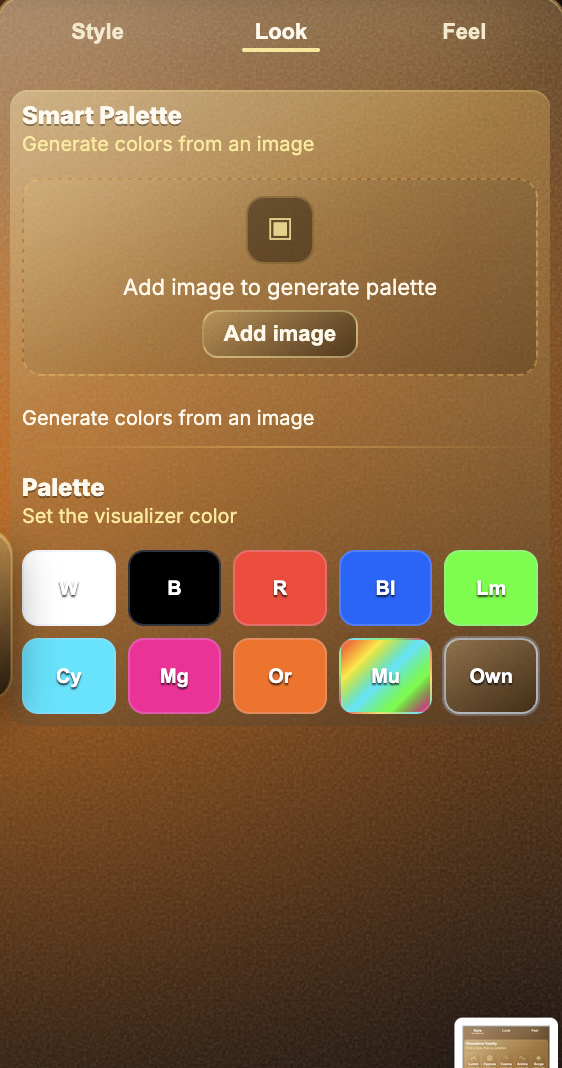
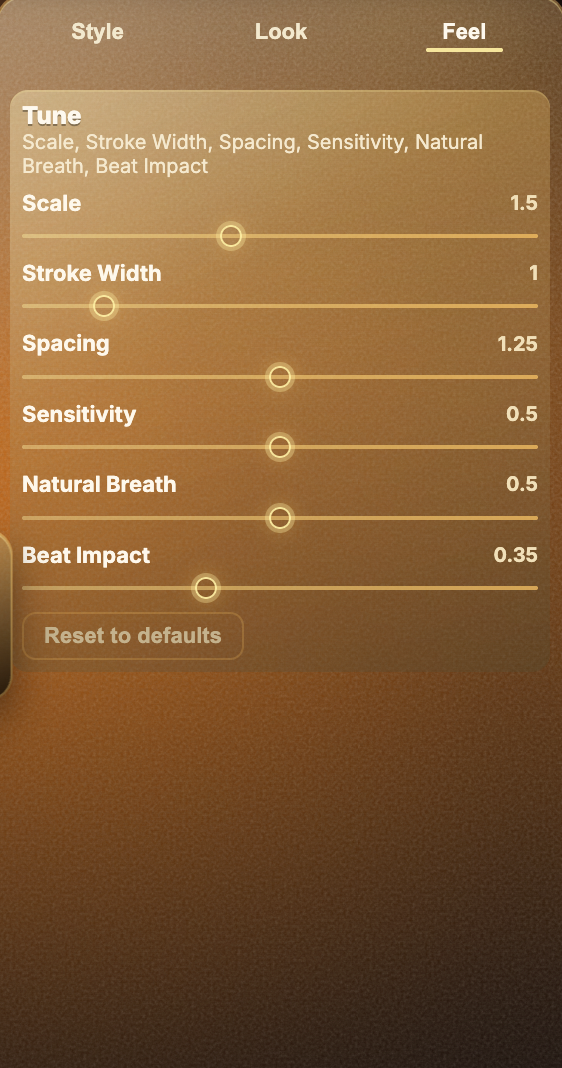
A transparent-looking overlay is not only a technical trick. It also needs to feel like it belongs in the shot. In Varya, use Style to choose the visual family, Look to control the color direction, and Feel to decide how much the song drives the motion.
For a bright energetic track, a bold pulse or sharper line style can work well. For ambient or emotional music, a slower breathing style usually sits better over footage. If the visualizer is covering faces, product shots, or typography, reduce scale, stroke width, or opacity later in the editor so the overlay supports the edit instead of taking it over.
- Style should match the mood of the song, not just the genre.
- Look should stay bright enough for Screen mode to preserve the visual.
- Feel should be adjusted until the motion reacts musically instead of constantly shaking.
Export the Varya MP4
When the visual feels right, export MP4 from Varya. Keep the black background. Keep audio enabled only if this MP4 is also your final music video. If the Varya file is only an overlay for an edit that already has mixed audio, turn audio off so you do not accidentally duplicate the soundtrack in the editor.
For most projects, export at the same resolution and frame rate as the timeline. This avoids unnecessary scaling and makes the overlay easier to preview. If the edit is 1080p at 30fps, export that. If it is a 4K project, export at 4K only when you need the extra detail or expect to scale the visualizer heavily.

Place the Varya clip above your Resolve footage
In DaVinci Resolve, import the Varya MP4 into the Media Pool and drop it on V2 above your main video on V1. Select the Varya clip, open Inspector, go to the Video tab, expand Composite, and set Composite Mode to Screen. Resolve will keep the bright visualizer and make the black background disappear visually.
After that, adjust Opacity in the same Inspector area. If the visualizer is meant to feel like light in the scene, try lowering opacity slightly before adding extra effects. If you are grading the footage heavily, check the overlay after your grade is in place because contrast and brightness changes can alter how strong the visual feels.
Resolve-specific checks before delivery
Preview the overlay in the Edit page and again on the Deliver page. Sometimes an overlay that looks balanced in the timeline feels too strong after final compression. If the black background is still visible, the Varya background may not be pure black or the composite mode may still be Normal. Recheck the Composite section before exporting.
If the visualizer feels washed out, return to Varya and increase color brightness or stroke weight instead of pushing Resolve effects too far. A cleaner source file usually blends better than trying to rescue a faint overlay in the editor.
- Use Screen, not Normal, for this MP4 method.
- Keep the Varya background black.
- Check the overlay after color grading.
- Use ProRes if you need real alpha transparency.