
Why use a Varya MP4 overlay in Premiere Pro?
Premiere Pro is built around fast timeline editing, so the Varya MP4 overlay method is useful when you want a visualizer that is easy to import, trim, duplicate, and reuse across edits. The file stays lightweight because it is MP4, while the transparent look is created in Premiere with the Screen blend mode.
The key limitation is that MP4 is not carrying real transparency here. The export must use a black background, and the visualizer itself should be bright. Premiere then uses the Opacity blend mode to hide the black visually. This is practical for music promos, lyric edits, podcast clips, and vertical cuts where you need speed more than a perfect alpha channel.
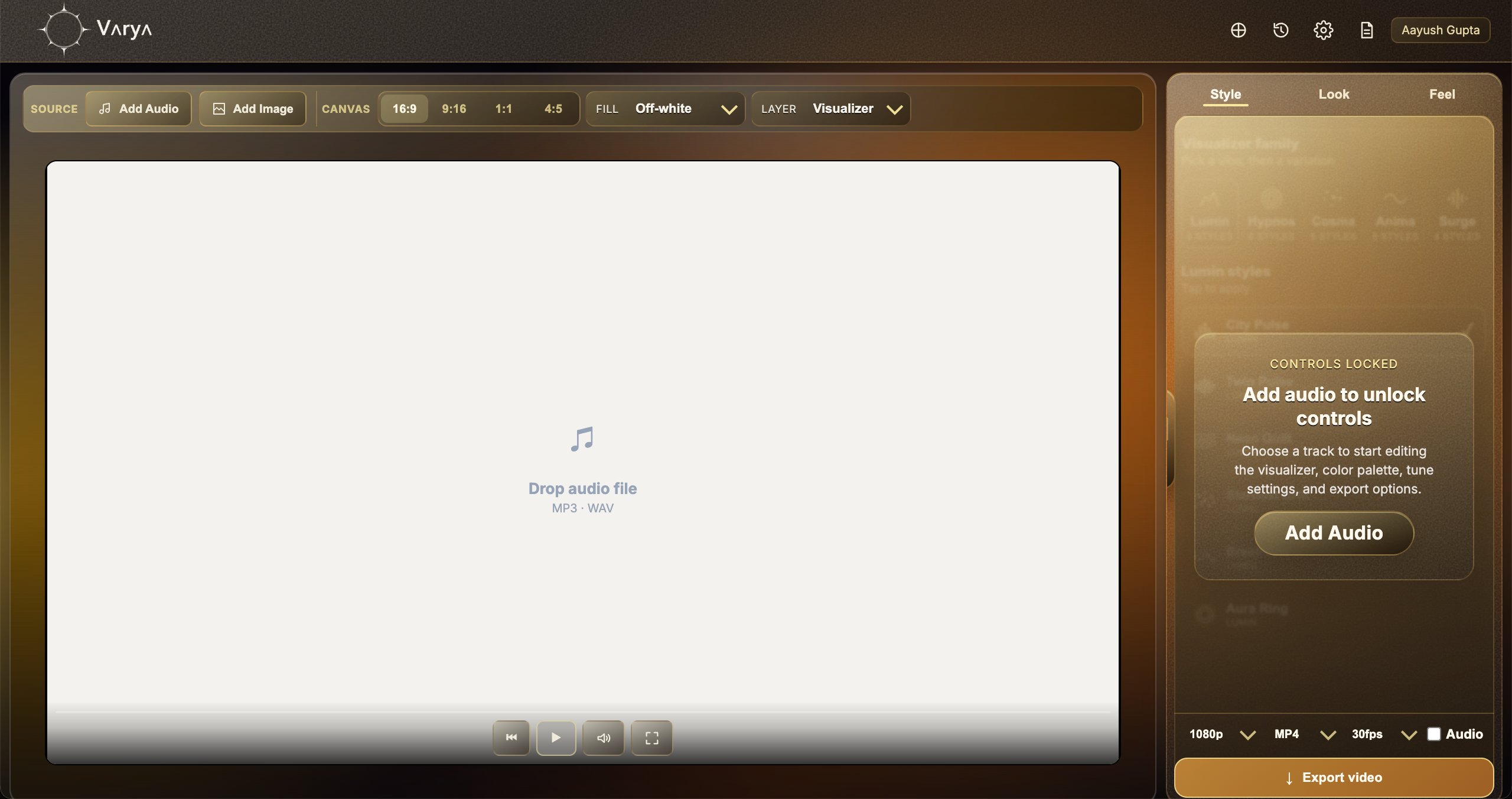
Set up Varya for a clean MP4 overlay
Open Varya, sign in, and add the track you want the visualizer to react to. The audio file is the source of the movement, so add it before spending too much time on styling. Then choose the canvas size that matches your edit. Use 16:9 for landscape video, 9:16 for vertical content, 1:1 for square posts, and 4:5 for portrait feed formats.
For this MP4 method, do not add a background image if the visualizer is supposed to sit over another video. Set the Varya background or fill to black. The black is not meant to be seen in the final edit; it is a technical background that gives Screen blending something clean to remove.
- Use black background for MP4 overlay exports.
- Use bright visualizer colors so Screen blending has visible pixels to keep.
- Avoid dark gray or low-contrast visualizers because they may disappear after blending.
- Match the Varya canvas to your Premiere Pro timeline or composition.

Design the visualizer so it blends with the edit
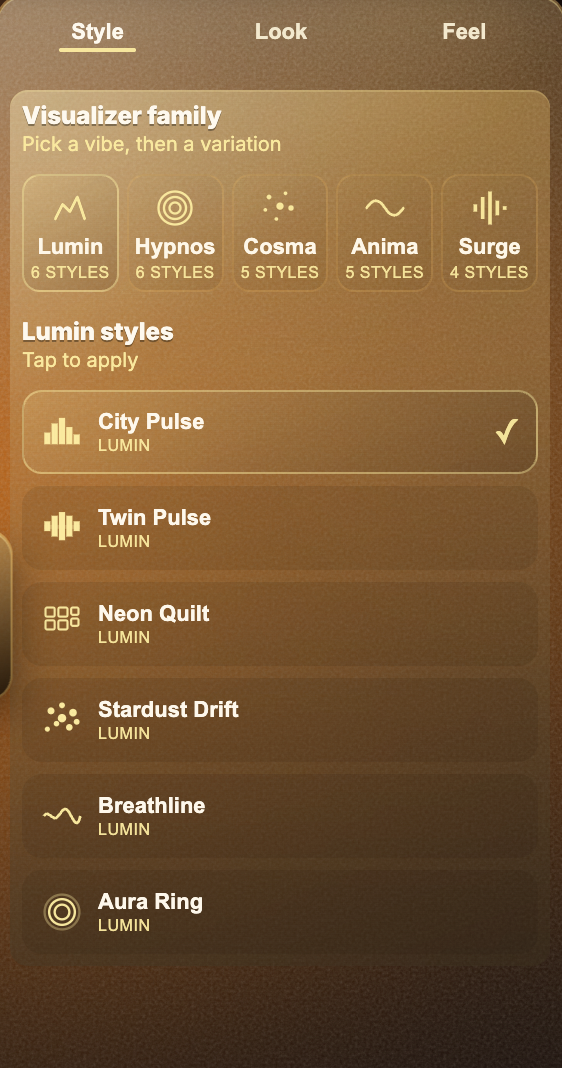
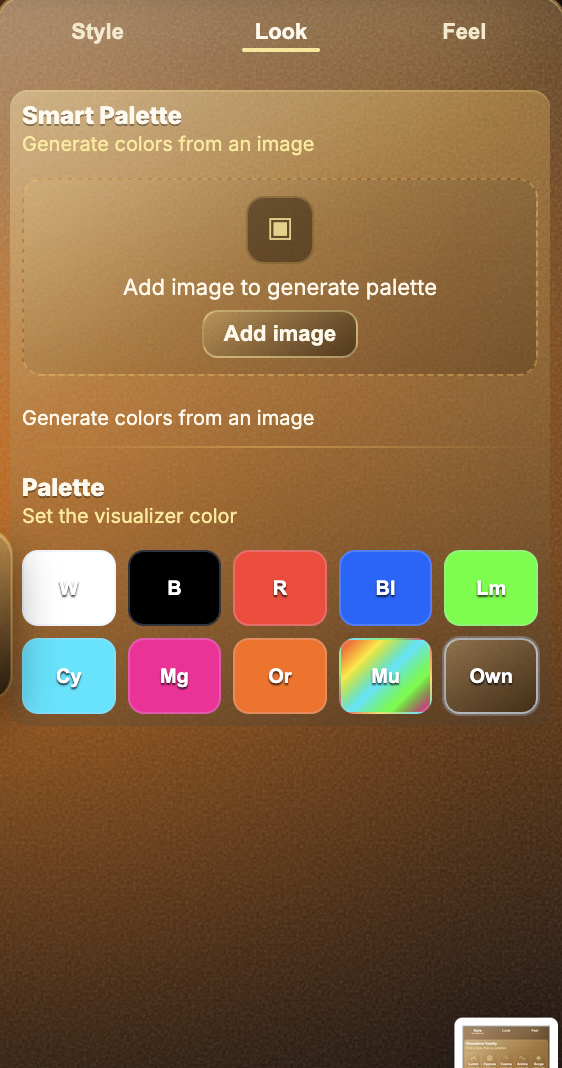
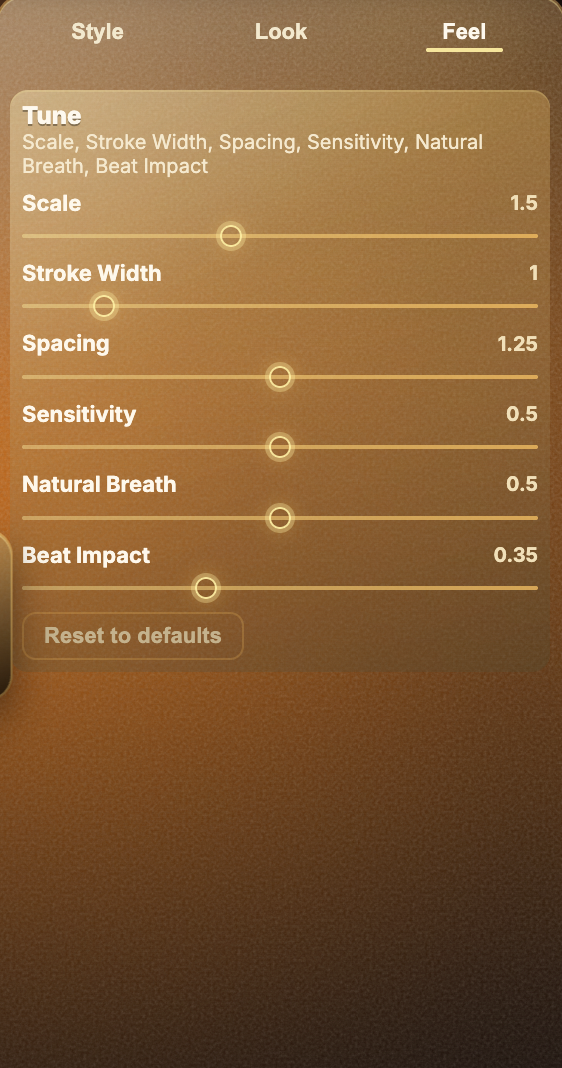
A transparent-looking overlay is not only a technical trick. It also needs to feel like it belongs in the shot. In Varya, use Style to choose the visual family, Look to control the color direction, and Feel to decide how much the song drives the motion.
For a bright energetic track, a bold pulse or sharper line style can work well. For ambient or emotional music, a slower breathing style usually sits better over footage. If the visualizer is covering faces, product shots, or typography, reduce scale, stroke width, or opacity later in the editor so the overlay supports the edit instead of taking it over.
- Style should match the mood of the song, not just the genre.
- Look should stay bright enough for Screen mode to preserve the visual.
- Feel should be adjusted until the motion reacts musically instead of constantly shaking.
Export the Varya MP4
When the visual feels right, export MP4 from Varya. Keep the black background. Keep audio enabled only if this MP4 is also your final music video. If the Varya file is only an overlay for an edit that already has mixed audio, turn audio off so you do not accidentally duplicate the soundtrack in the editor.
For most projects, export at the same resolution and frame rate as the timeline. This avoids unnecessary scaling and makes the overlay easier to preview. If the edit is 1080p at 30fps, export that. If it is a 4K project, export at 4K only when you need the extra detail or expect to scale the visualizer heavily.
Use Effect Controls to blend the overlay
Import the Varya MP4 into Premiere Pro and place it on V2 above your main footage on V1. Select the Varya clip, open Effect Controls, expand Opacity, open the Blend Mode dropdown, and choose Screen. The black background should disappear visually while the brighter visualizer remains above the footage.
Premiere makes this workflow easy to tune because opacity, scale, position, and blending are all available on the selected clip. If the overlay competes with captions or subject framing, reduce Opacity, move the clip, or scale it down. If the visualizer is too faint, brighten the color in Varya and export again.
Premiere-specific mistakes to avoid
Do not apply Screen to the footage underneath. Apply it only to the Varya overlay clip. Also check that the Varya clip is above the footage. If it is on the same track or below the footage, the blend will not create the intended overlay result.
If the project includes multiple sequences, match the Varya canvas to the sequence you are actually exporting. A 9:16 visualizer placed into a 16:9 sequence, or the reverse, will require extra scaling and may lose composition quality.
- Apply Screen inside Effect Controls > Opacity.
- Keep the Varya clip on a higher video track.
- Match Varya canvas size to the Premiere sequence.
- Use ProRes if you need true alpha instead of Screen blending.