
Use ProRes when Resolve needs a real transparent visualizer
The ProRes workflow is the clean DaVinci Resolve option when you want the visualizer to carry real transparency. Instead of using a black background and Screen mode, Varya exports an alpha-capable file that Resolve can place directly above the edit.
This is better for polished grades, client work, and projects where the overlay may need to survive multiple exports. The file is larger than MP4, but the result is more predictable because the transparent area is stored in the file instead of being simulated by blend mode.
Set up Varya for real transparency
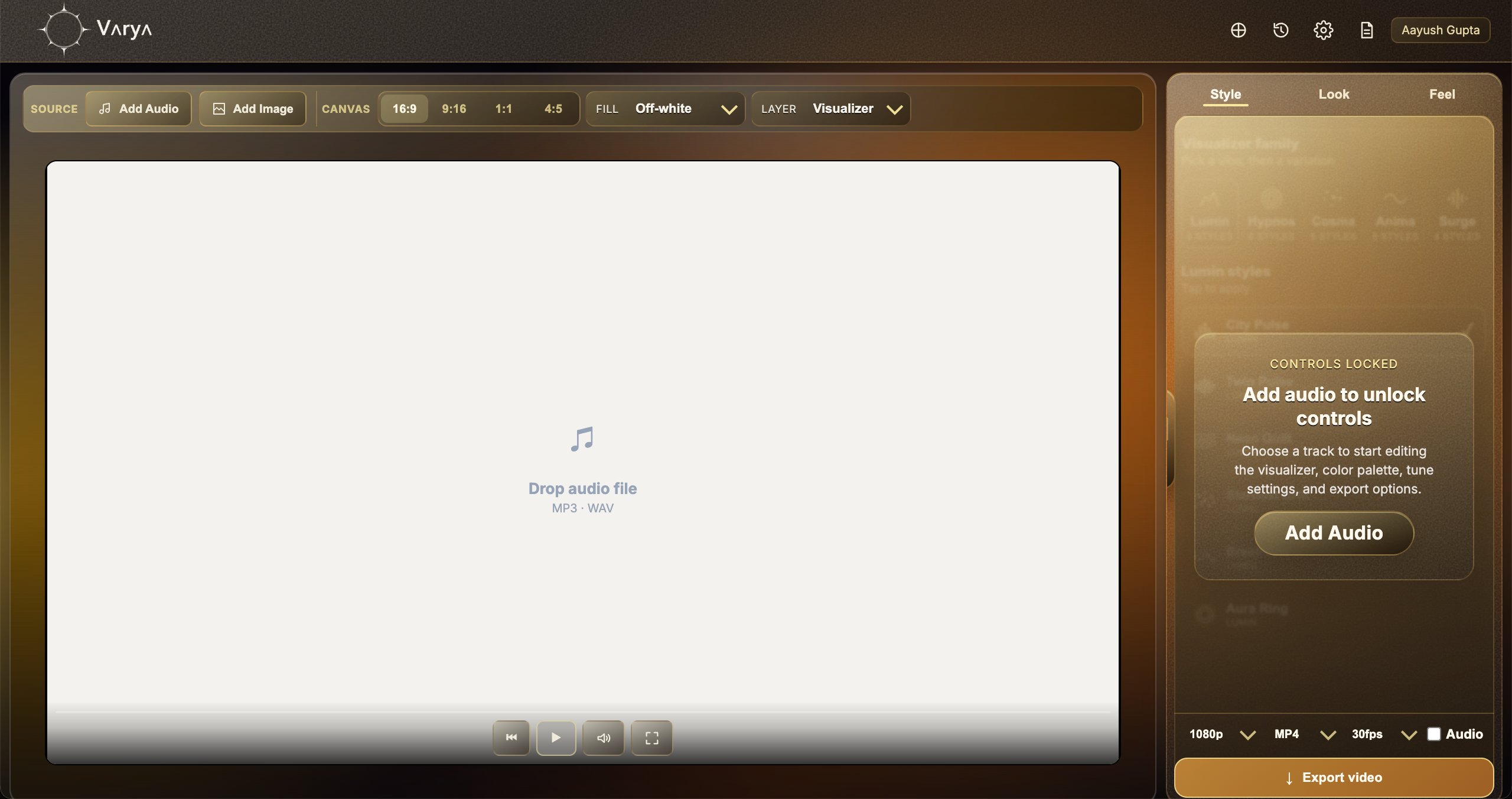
Start by adding your audio track in Varya. The visualizer reacts to the sound, so the track should be the same one used in your edit or at least a version with the same timing. Choose the canvas size based on the final project: 16:9 for horizontal video, 9:16 for vertical edits, 1:1 for square posts, or 4:5 for portrait feeds.
For ProRes transparency, choose the transparent fill or transparent background option in Varya. Do not add a background image if you want the overlay to remain transparent. The visualizer itself should be the only visible element. You can still choose any visualizer color because the alpha channel handles the transparent area; you do not need to force everything to bright colors for Screen mode.
- Choose Transparent fill/background in Varya.
- Do not add a background image for a transparent overlay export.
- Use ProRes when the file needs real alpha transparency.
- Match the canvas size to your DaVinci Resolve timeline or composition.

Customize the overlay before export
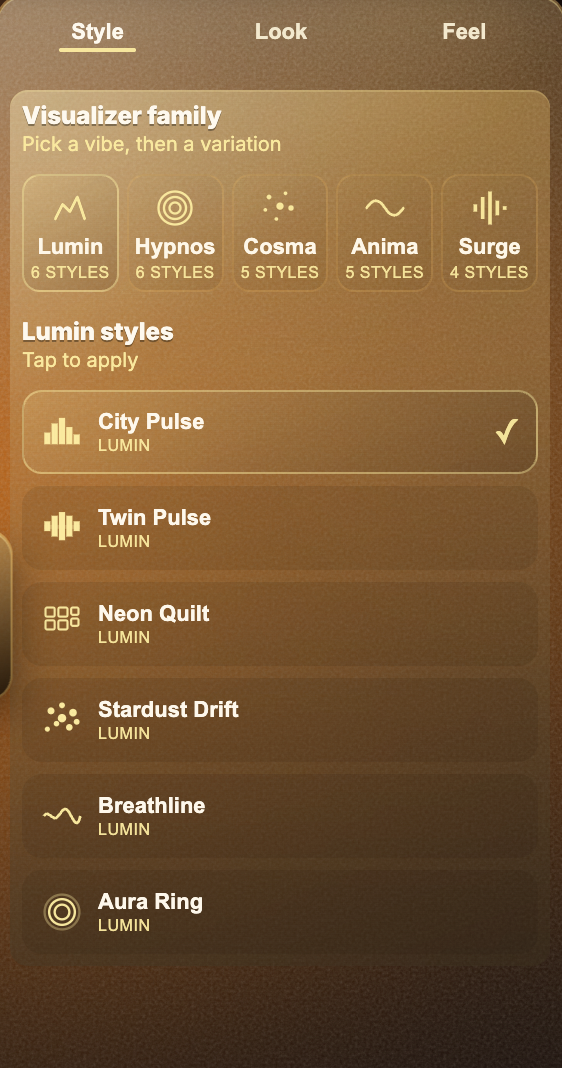
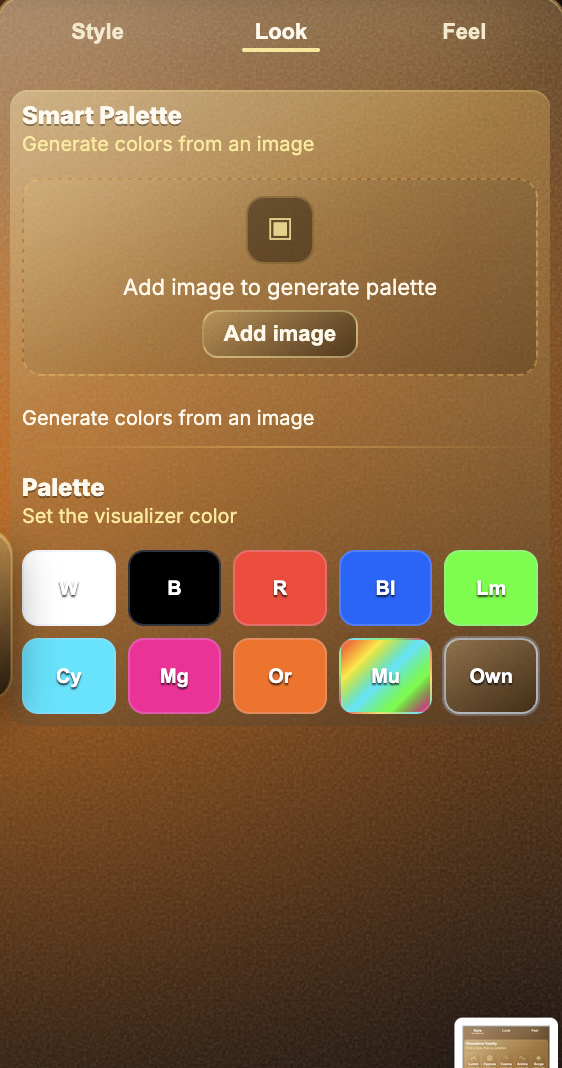
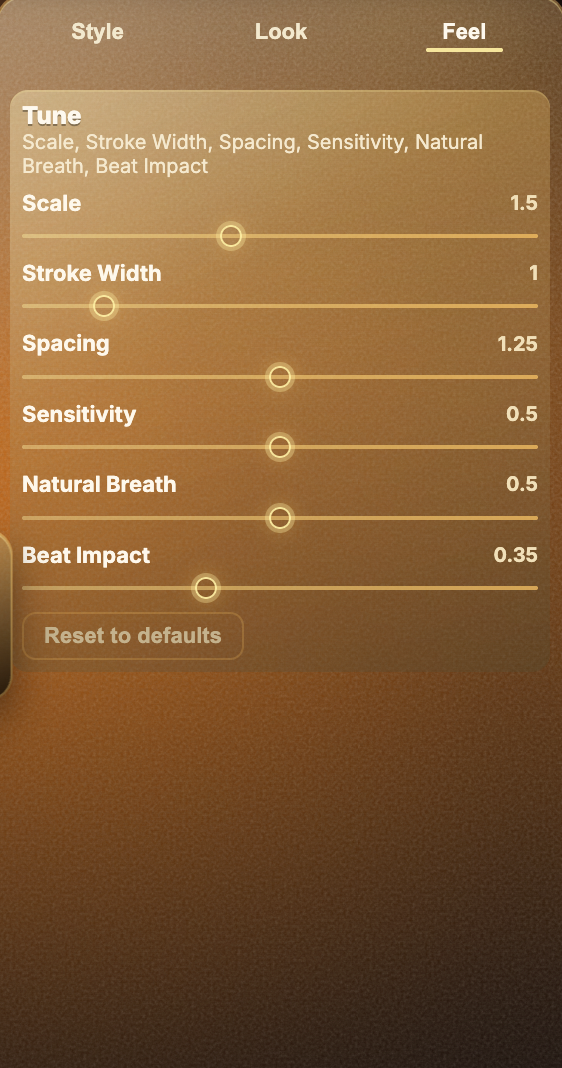
Because ProRes preserves transparency directly, you have more freedom in the design. The visualizer can be bright and sharp, soft and minimal, or subtle enough to sit behind text. Use Style to choose the visual form, Look to control color, and Feel to shape how strongly the audio drives the motion.
If the overlay will sit above busy footage, keep the visualizer clean and avoid excessive density. If it will sit over a simple background, you can push scale, beat impact, and color harder. A useful rule is to preview the visualizer at the size it will appear in the final edit. A style that looks perfect full-screen may be too thin or too busy when placed over a vertical short or a small title card.
Export ProRes from Varya
When you are ready, choose ProRes as the export format and keep the transparent fill enabled. If the export panel includes audio, only keep audio on when the overlay file is also meant to carry the song. For a pure overlay that will sit on top of an edit with existing sound, turn audio off to keep the timeline clean.
ProRes exports are heavier, so they may take longer to render and upload. That is normal. The reason to use the format is quality and alpha support, not smallest file size. If you only need a quick social overlay and do not care about real transparency, MP4 plus Screen can be faster.
Layer the ProRes file in Resolve without Screen mode
Import the ProRes file into the Media Pool and place it on V2 above your footage on V1. Keep Composite Mode set to Normal. If Resolve reads the alpha correctly, the visualizer appears over the footage immediately and the transparent area stays invisible.
If the edge looks incorrect, right-click the clip in the Media Pool, open Clip Attributes, and review Alpha Mode. Straight and Premultiplied alpha can behave differently. Once it looks correct, trim and grade around the overlay like any other composited element.
When ProRes is the better choice
Choose ProRes when the overlay needs clean edges, reusable transparency, or professional compositing. It is especially useful when the visualizer will move between applications, be reused across multiple timelines, or sit over footage that already has a lot of dark detail. Since the transparent area is actual alpha, the result is more predictable than Screen blending.
Choose MP4 instead when you need a smaller file, a faster export, or a simple overlay that is bright on black. The two workflows are both useful, but they solve different problems. MP4 is convenient. ProRes is cleaner and more flexible.
- Use ProRes for true alpha transparency.
- Use Normal blending in the editor.
- Use MP4 plus Screen only when alpha is not required.
- Keep editor-specific alpha interpretation in mind if edges look incorrect.