
Export settings depend on the job
There is no single best export setting for every music visualizer. The right choice depends on where the visual will be used. A finished YouTube visualizer needs a different export than a transparent overlay for Premiere Pro. A quick Reel needs different priorities than a ProRes file for a professional edit. Varya gives you multiple paths so the file matches the workflow.
The simplest way to decide is to ask two questions: is this the final video, or is it an overlay for another edit? And does the overlay need true transparency, or is a black-background MP4 with Screen blending good enough? Once those questions are clear, format, background, audio, resolution, and frame rate become easier to choose.
Use MP4 for finished videos and fast sharing
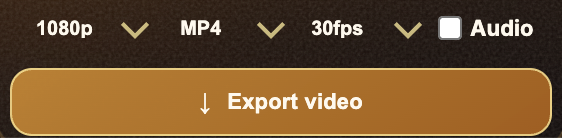
MP4 is the safest choice when the Varya export is the final video. Use it for YouTube uploads, social posts, quick previews, client drafts, and files that need to play easily almost everywhere. If the visualizer includes the full background, artwork, and audio, MP4 is usually the practical format.
MP4 can also be used as an overlay when exported on a black background and blended with Screen in an editor. This does not create real transparency, but it is fast and widely compatible. It works best with bright visualizers, glowing lines, particles, pulses, and other light-on-dark designs.
- Use MP4 for finished YouTube or social videos.
- Use MP4 for quick previews and lightweight sharing.
- Use black background plus Screen blending for simple overlay workflows.
- Do not expect MP4 to preserve real alpha transparency in this workflow.
Use ProRes when transparency and quality matter
ProRes is the better choice when the visualizer needs to be a true transparent overlay. Use transparent fill in Varya, export ProRes, and place the file above your footage in the editor using Normal blending. This is cleaner than trying to remove black with Screen because the transparent area is stored directly in the file.
The cost is file size. ProRes files are much larger than MP4 files, but they hold up better in professional compositing workflows. Use ProRes for client work, reusable overlays, edits moving between tools, or situations where clean edges and predictable transparency matter more than small file size.

Match resolution and frame rate to the destination
Resolution should match the final platform or timeline. Use 16:9 for standard YouTube, 9:16 for Reels and Shorts, 1:1 for square posts, and 4:5 for portrait feed formats. Exporting the wrong canvas size creates extra cropping work later and can make the visualizer feel poorly composed.
Frame rate should usually match the edit. If your timeline is 30fps, export 30fps. If it is 24fps or 25fps, match that unless you have a specific reason not to. Matching frame rate makes motion feel consistent and avoids unnecessary conversion inside the editor.
- 16:9 for YouTube and landscape edits.
- 9:16 for Reels, Shorts, TikTok, and vertical video.
- 1:1 or 4:5 for feed-first social posts.
- Match frame rate to the timeline whenever possible.
Decide whether audio should be included
Audio is easy to overlook. If the Varya export is the final music visualizer video, keep audio enabled. If the export is only an overlay for another timeline, turn audio off unless you intentionally need it. Otherwise, you may end up with duplicate audio or a timing mismatch inside the editor.
A clean overlay file usually contains only the visual. The main project timeline should carry the final mixed audio. This gives you more control over volume, mastering, captions, and platform-specific audio requirements.
A simple decision rule
Use MP4 when you need a finished video, fast upload, small file, or simple black-background overlay. Use ProRes when you need real transparency, professional compositing, cleaner edges, or reusable overlays. Use 16:9 for YouTube, 9:16 for short-form vertical content, and match the resolution and frame rate to the destination whenever possible.
The best export setting is the one that reduces work after export. If you know the destination before you render, Varya can produce a file that drops into the next step cleanly.