Start with the vertical format, not a crop later
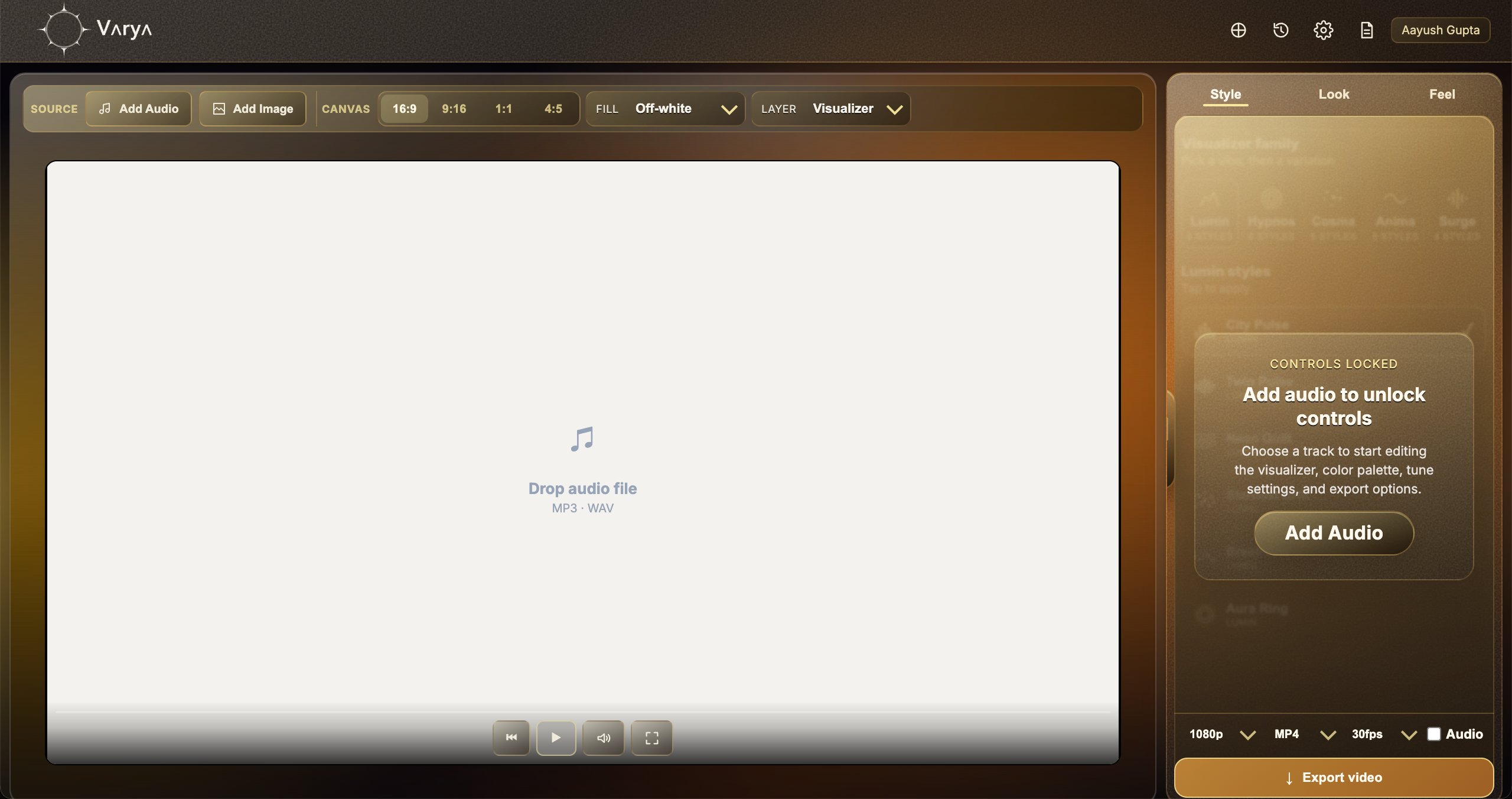
Transparent music visuals for Reels, Shorts, and TikTok should be designed vertically from the beginning. Cropping a 16:9 visualizer into 9:16 often cuts off the best part of the motion and makes the composition feel accidental. In Varya, choose the 9:16 canvas before tuning scale, spacing, and style.
The goal is usually to place an audio-reactive visual over vertical footage, cover art, captions, or a short-form edit. That means the visualizer needs to be bold enough to read on a phone but controlled enough not to cover the subject or text. Vertical space changes the design problem: the center area, captions, and safe margins matter more.
Choose 9:16 and decide the transparency method
Add your audio, choose 9:16, and then decide whether the export needs real transparency. If you are using ProRes, choose transparent fill and keep the background empty. If you need MP4, use a black background and remove it visually in the editor with Screen blending. Both methods can create useful overlays, but they are not the same.
For quick Reels and Shorts edits, MP4 plus Screen is often enough because the visualizer is usually bright and graphic. For cleaner compositing, reusable assets, or professional edits, ProRes with transparency is better. The decision depends on file size, editor support, and how precise the overlay needs to be.
- Choose 9:16 for Reels, Shorts, TikTok, and vertical posts.
- Use Transparent fill for ProRes alpha overlays.
- Use black background for MP4 Screen overlays.
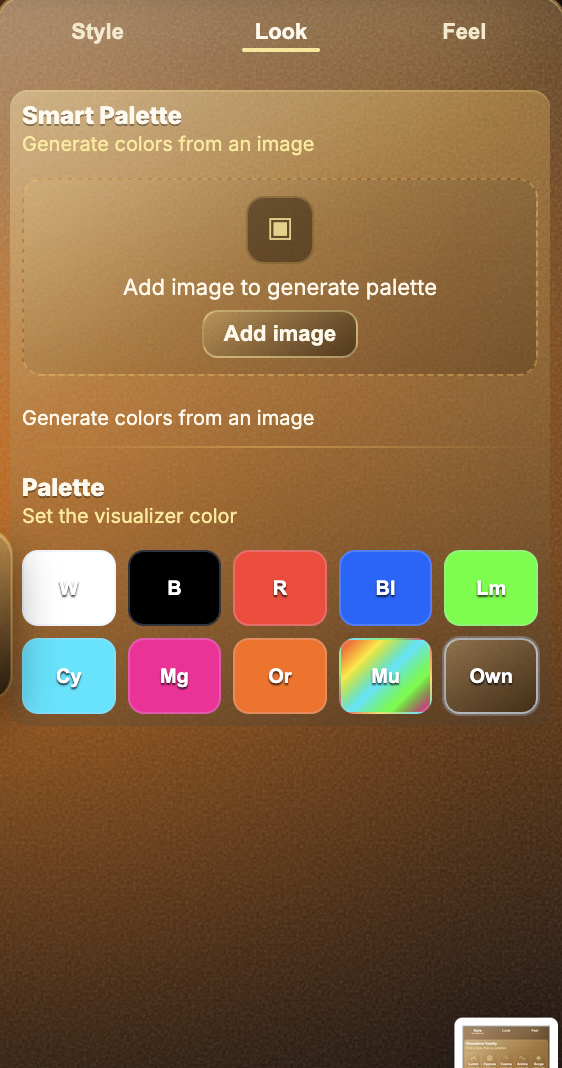
- Do not add a background image if the visual should sit over another video.

Design for mobile readability
Short-form video is watched quickly, often on small screens, and often with interface controls covering part of the frame. That means the visualizer should be readable at a glance. Use stronger shapes, clear color contrast, and motion that reacts to musical moments without becoming visual noise.
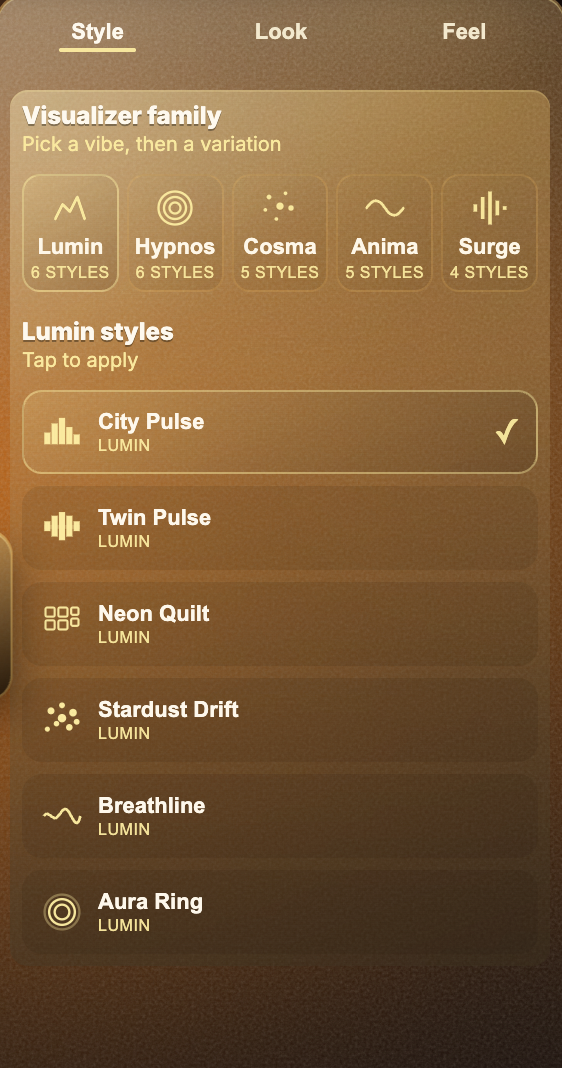
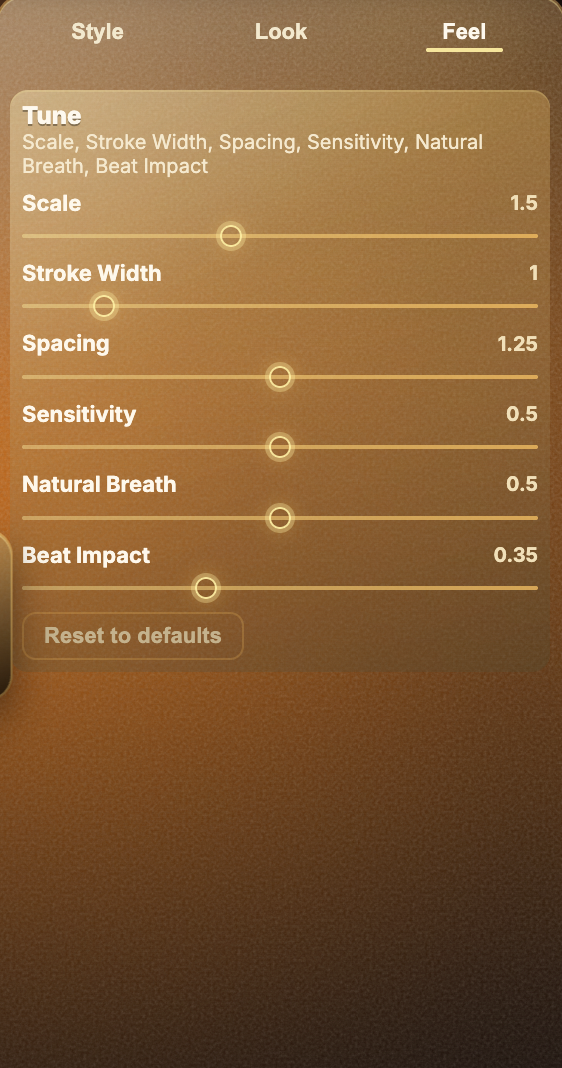
If there are captions, keep the visualizer away from the caption area or reduce its intensity. If the subject is centered, use a style that frames the subject rather than covering them. In Varya, Feel is especially important for vertical content because small changes to scale and stroke width can make the overlay feel either polished or crowded.
Export for the editor or platform
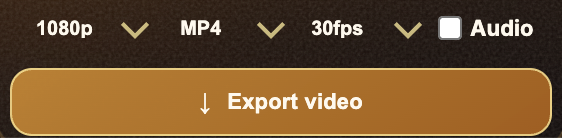
If Varya is creating the final vertical visual, export MP4 with audio enabled. If the file is an overlay for a separate edit, turn audio off unless you specifically need the track in that overlay file. Use the same frame rate as the edit where possible, especially when the visualizer will sit over footage with motion.
For MP4 overlays, bring the black-background file into your editor, place it above the footage, and use Screen blending. For ProRes overlays, place the file above the footage and keep the blend mode Normal. The ProRes file carries the transparency directly, so no black-removal method is needed.
A practical vertical workflow
A simple repeatable workflow is: choose 9:16, add audio, skip background if you need an overlay, pick a bold visualizer style, tune Feel until the motion is readable, then export in the format your editor needs. After importing, place the visualizer over the footage and adjust opacity or scale until it supports the short rather than distracting from it.
This approach works for artist announcements, song previews, beat snippets, podcast moments, DJ clips, and cover-art animations. The more consistent the workflow is, the easier it becomes to create multiple vertical visuals for the same release campaign.