
Why AI-generated songs need a visual identity
Suno, Udio, Stable Audio, MusicFX, ElevenLabs Music, and similar AI music generators can help creators produce songs quickly. The next problem is presentation. A finished audio file still needs a visual wrapper if you want to post it on YouTube, Reels, Shorts, TikTok, or inside a video edit. That is where a music visualizer becomes useful: it turns the AI-generated track into something people can watch, not just hear.
A good visualizer also helps the song feel more intentional. Many AI-generated songs begin as experiments, demos, prompts, or short ideas. When you add a visualizer that reacts to the rhythm and mood, the track starts to feel like a release asset. It can become a YouTube upload, a social teaser, a portfolio piece, a background for lyrics, or an overlay inside a larger edit.
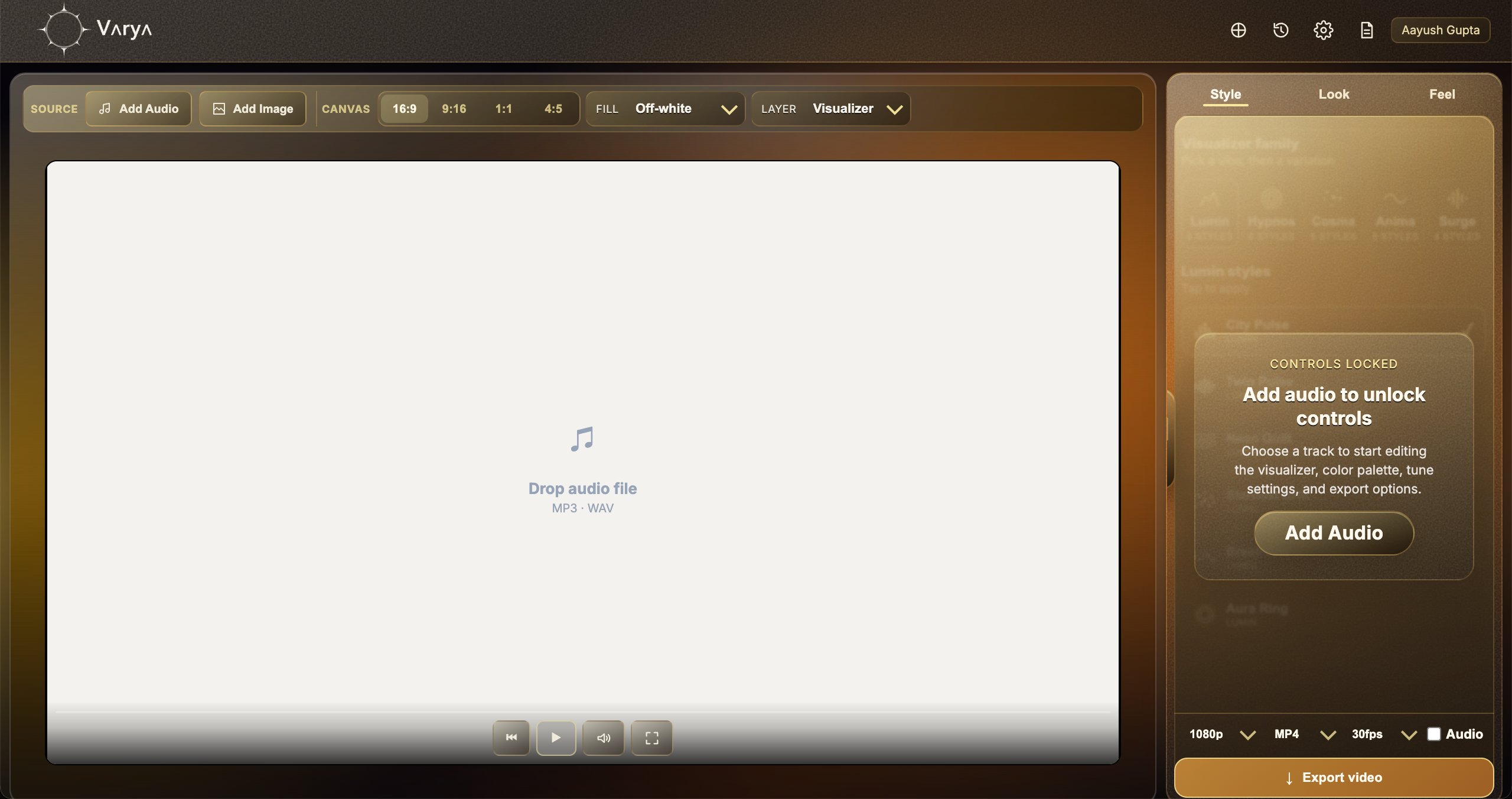
Step 1: Export the best audio version from your AI music tool
Before opening Varya, export the cleanest version of the song from the AI music generator. With Suno and Udio, that usually means choosing the final version after any extensions, lyric edits, or section changes are complete. With instrumental tools such as Stable Audio or MusicFX-style workflows, make sure the duration and arrangement are already close to what you want to publish.
If the tool offers WAV, use WAV when quality matters. MP3 is still fine for quick social content, but WAV gives Varya and your final export a cleaner source. If the AI music tool offers stems, you can still use the full mix for Varya because the visualizer should react to what the audience hears. Use stems only if you plan to do separate mixing in a DAW or editor before creating the final visualizer.
- Finish the song structure before creating the visualizer.
- Use WAV when available for cleaner source quality.
- Use the full mixed track for the visualizer unless you have a specific stem workflow.
- Check the license and commercial-use terms in the AI music platform before publishing.
Step 2: Add the AI-generated song to Varya
Open Varya and add the exported song. The audio file is what drives the visual response, so do this before choosing a style. Varya reads the track and gives you a workspace where the song, canvas, artwork, visualizer style, color, motion, and export settings can be handled in one flow.
This is especially useful for AI songs because the mood can vary widely. A Suno track might have vocals, chorus sections, and a pop structure. A Udio track might have more detailed instrumentation or experimental sections. A Stable Audio or MusicFX-style track may be instrumental and loop-friendly. The visualizer should respond to the final sound, not just the prompt that created it.
Step 3: Choose the right canvas for the platform
The canvas should be chosen based on where the AI-generated song will be posted. Use 16:9 for a full YouTube music visualizer. Use 9:16 for Reels, Shorts, TikTok, and vertical teasers. Use 1:1 when you want a square post, and 4:5 for portrait feed formats. Choosing this early prevents awkward cropping later.
For AI-generated songs, it is common to create more than one version: a full 16:9 YouTube visualizer and a shorter 9:16 teaser. You can use the same song and similar style direction, but tune scale and spacing separately for each canvas. A visualizer that looks balanced in landscape may feel too small or too crowded in vertical format.
- Use 16:9 for YouTube visualizers and landscape uploads.
- Use 9:16 for Reels, Shorts, TikTok, and vertical previews.
- Use 1:1 or 4:5 for feed-first social posts.
- Create separate exports when the same AI song needs multiple platform formats.

Step 4: Decide whether to add artwork or keep it as an overlay
If the visualizer will be the final video, add artwork, a cover image, a generated image, or a still background. This works well for AI songs because many creators also generate cover art or mood images for the track. The artwork gives the song a visual world, and the visualizer adds movement that reacts to the audio.
If the visualizer should sit over another edit, do not add a background image. Use a transparent workflow instead. For MP4 overlays, use a black background and apply Screen blending in your video editor. For real transparency, use transparent fill and export ProRes if that is the workflow you need. The right choice depends on whether Varya is producing the whole video or an overlay layer.
- Add artwork when the Varya export is the final visual scene.
- Skip artwork when creating an overlay for another video editor.
- Use black background for MP4 Screen overlays.
- Use transparent fill with ProRes when you need true alpha transparency.
Step 5: Match the visual style to the AI song
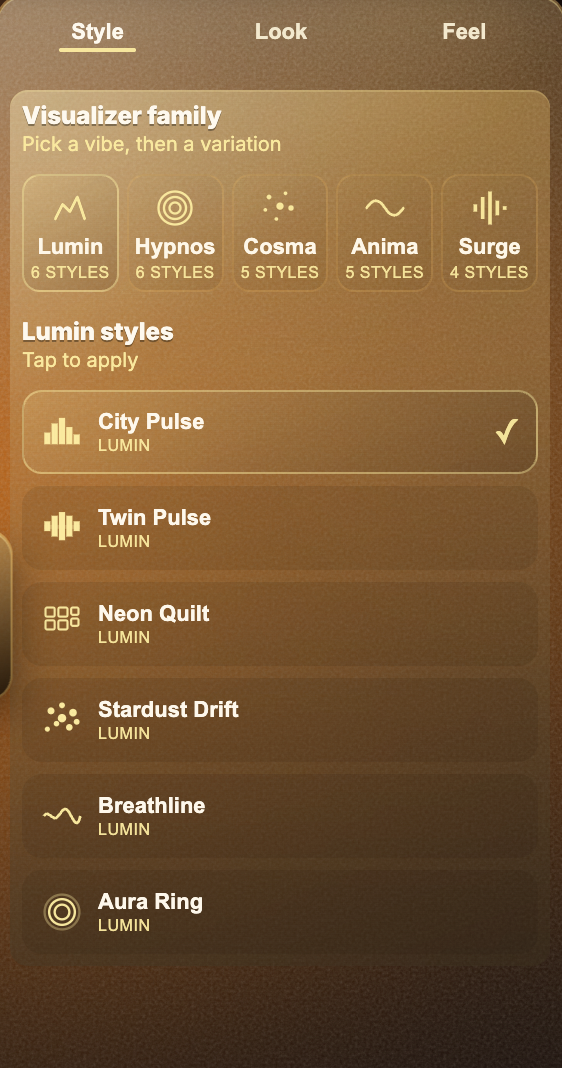
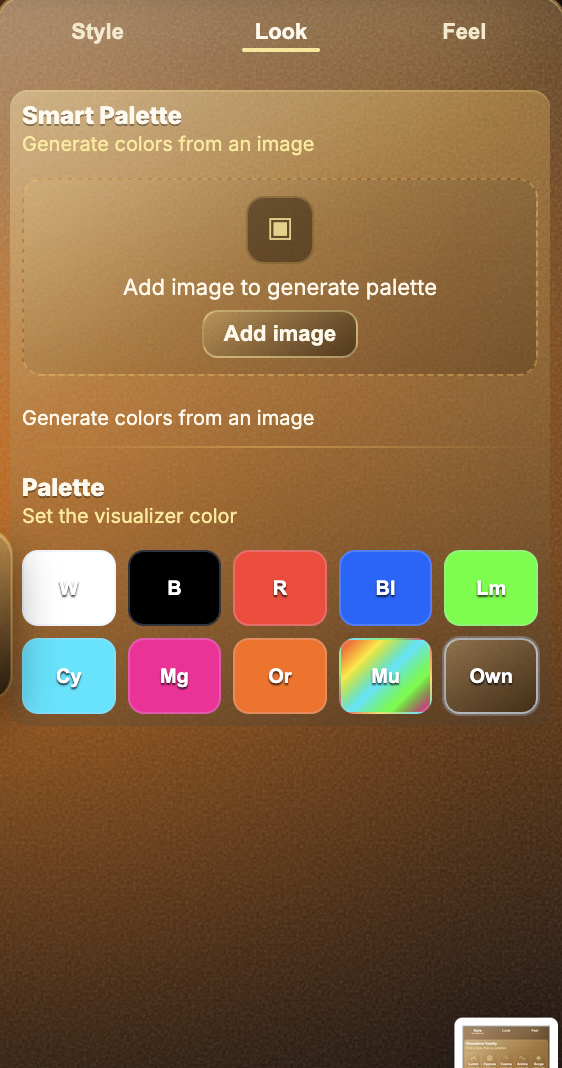
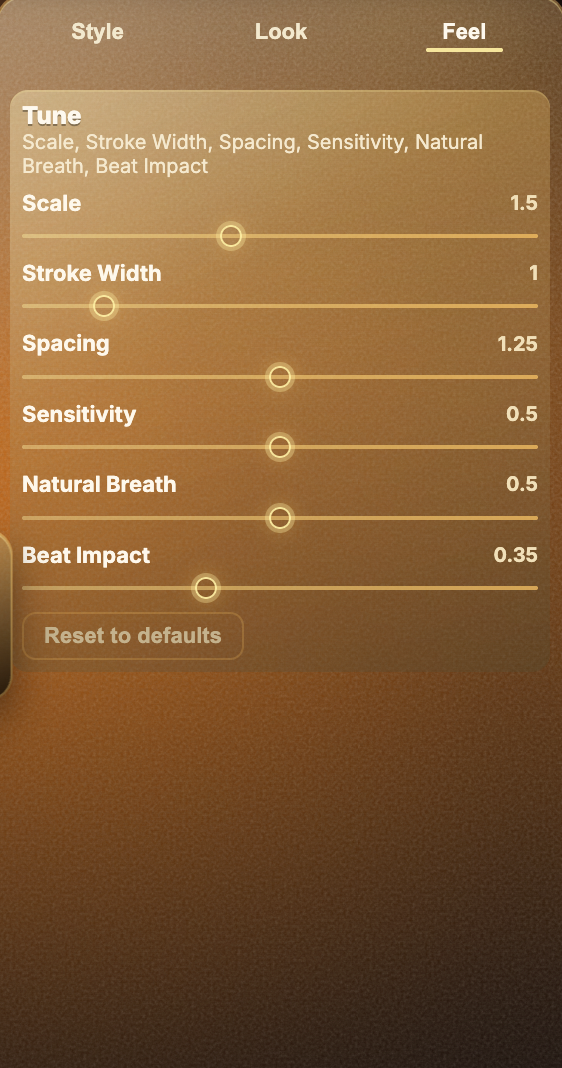
AI-generated songs can sound polished, strange, cinematic, funny, dreamy, or genre-blended. The visualizer should match that character. Use Style to choose the visual family, Look to control color, and Feel to tune how strongly the audio affects motion. Do not simply choose the loudest or busiest style. The best visualizer supports the song’s mood.
For a pop or vocal Suno song, a clean pulse, ring, or wave style can keep attention on the hook. For an instrumental Udio or Stable Audio track, you might choose something more atmospheric or abstract. For cinematic AI music, slower motion and controlled color often feel better than constant flashing. If you use artwork, Smart Palette can help pull colors from the image so the visualizer feels connected to the cover.
Step 6: Export for YouTube, Shorts, or editing
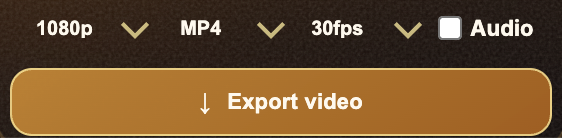
When the visual feels right, export based on the destination. Use MP4 when you want a finished video for YouTube, Reels, Shorts, TikTok, or quick sharing. Keep audio enabled if the Varya export is the final music visualizer. Turn audio off if the file is only an overlay for an edit that already has the mixed song in the timeline.
If the visualizer is meant to be layered over footage in DaVinci Resolve, Premiere Pro, Final Cut Pro, or After Effects, choose the overlay workflow that matches your editor. MP4 on black plus Screen blending is fast and lightweight. ProRes with transparent fill is better when you need real alpha and cleaner compositing.
Practical tips for AI music creators
Keep versions organized. AI music tools often generate many takes, extensions, and remixes. Name the final audio file clearly before importing it into Varya so you do not build a visualizer around the wrong version. If the song has a long intro or outro, decide whether the visualizer should start immediately or build slowly with the track.
Also think about publishing rights. AI music platforms have different licensing terms depending on plan, region, and use case. Before posting a monetized YouTube video, ad, client project, or commercial release, check the terms inside the tool that generated the song. Varya can help make the song visual, but the source music rights still come from the AI music platform and your account terms.
- Name final audio exports clearly before importing into Varya.
- Make separate 16:9 and 9:16 exports instead of cropping one file everywhere.
- Use artwork for finished music videos and no artwork for overlays.
- Check commercial-use terms in Suno, Udio, Stable Audio, MusicFX, ElevenLabs Music, or whichever tool created the song.