Start with the finished Udio track
Udio songs can go through prompts, extensions, remixes, and arrangement changes. Choose the final version first, export the audio, and name the file clearly before bringing it into Varya.
The visualizer should react to the final mix that listeners will hear. If you plan to master or edit the audio elsewhere, finish that step before creating the final video export.
Pick the destination
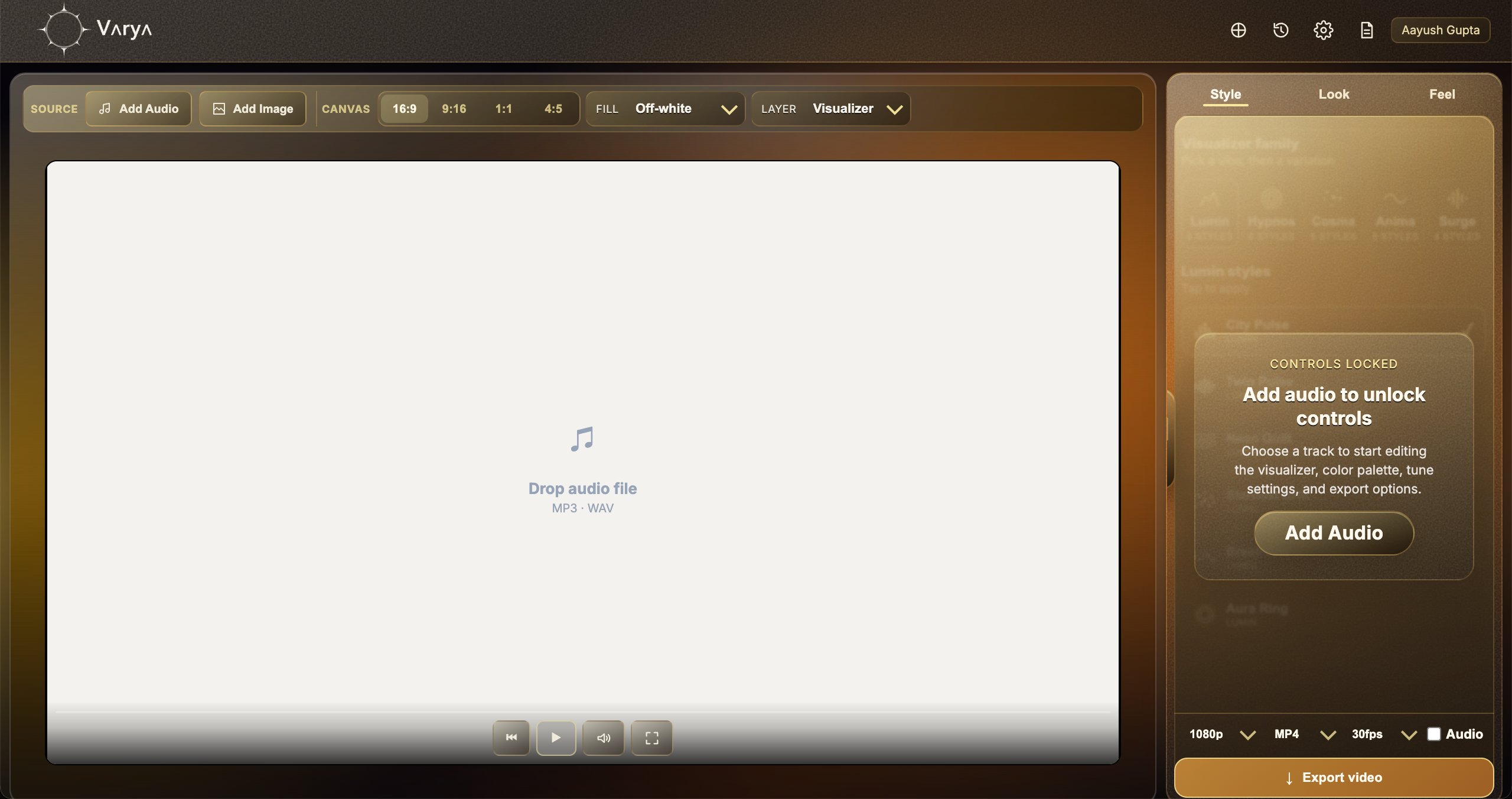
A Udio track might need a YouTube video, a Shorts teaser, a Reel, a TikTok post, or an overlay for a larger edit. Choose the destination before styling so the canvas and composition are correct.
Use 16:9 for YouTube, 9:16 for short-form vertical clips, and transparent export when the visualizer needs to sit above footage.
- 16:9: full YouTube music visualizer.
- 9:16: Shorts, Reels, and TikTok.
- MP4: finished video or simple overlay.
- WebM or ProRes: transparent overlay workflows.

Match style to the AI song
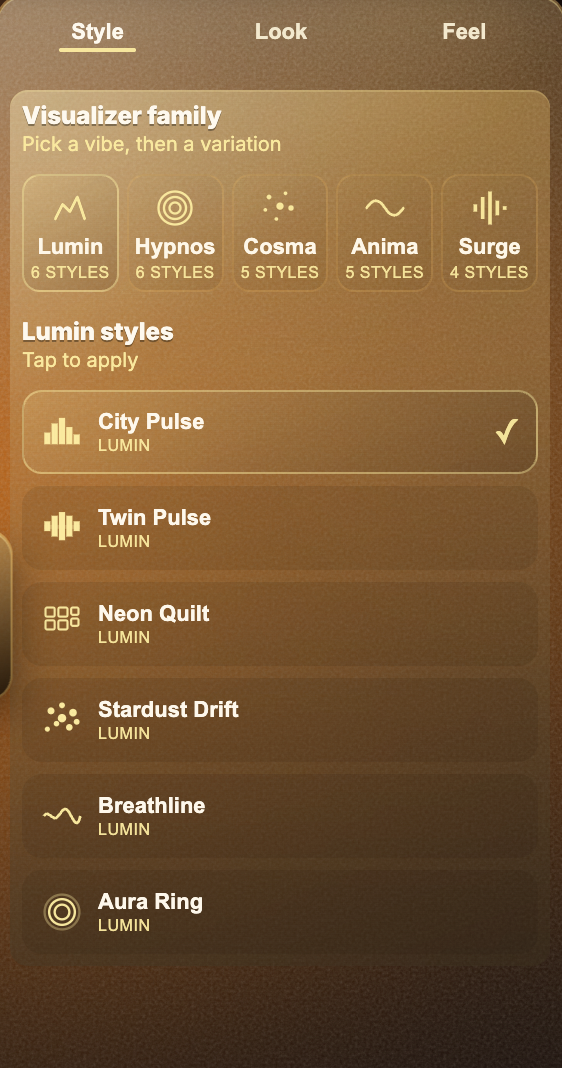
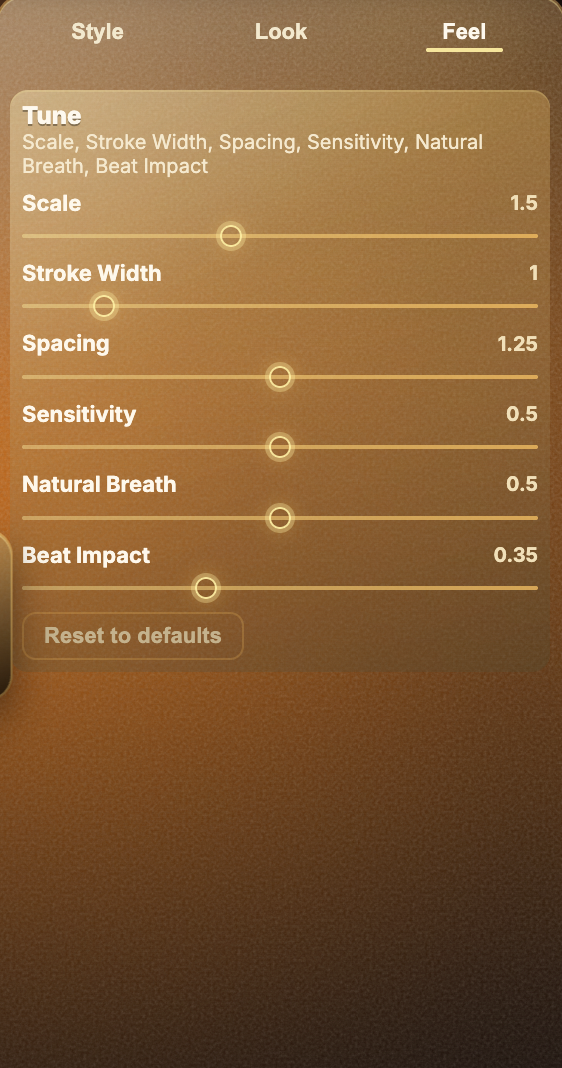
Udio tracks can sound polished, experimental, cinematic, or genre-blended. Choose a visualizer style that supports the mood. A vocal-led song may need cleaner motion; an instrumental or electronic track can often carry a more expressive visual.
Use Varya's Look and Feel controls to tune color and motion until the video feels like part of the song identity.
Export the right version
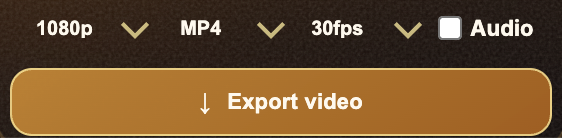
Export MP4 when you need a finished video. Export a transparent format when the visualizer is only one layer in an edit. Keep audio enabled for a finished video and turn it off for overlay-only files unless you need a reference track.
Before publishing AI-generated music, check the terms for the platform that created the song and confirm that your planned use is allowed.