Start with a vertical 9:16 canvas
A YouTube Shorts visualizer should be designed vertically from the start. Use a 9:16 canvas instead of exporting a landscape video and cropping it later. This keeps the visualizer centered, protects artwork, and makes the motion feel intentional on mobile.
In Varya, add the song first, choose a 9:16 canvas, then decide whether the visualizer will use cover art, a simple background, or a clean abstract style.

Keep the center readable
Shorts are viewed quickly, so the visual needs a clear center of attention. Avoid making the visualizer too small, and avoid placing important motion at the very top or bottom where app interface elements may compete with it.
Use stronger contrast than you would for a long-form YouTube visualizer. A vertical clip has less room, so the visualizer should be legible at a glance.
- Keep important motion near the middle of the frame.
- Use high contrast between the visualizer and the background.
- Avoid tiny line work that disappears on mobile.
- Preview the export on a phone before posting.
Export MP4 for Shorts
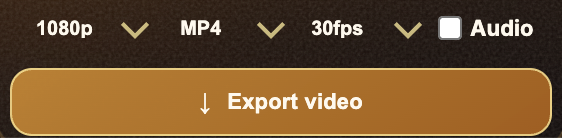
MP4 is the simplest export format for YouTube Shorts. Keep audio enabled if the Varya export is the final post. If the visualizer will be combined with other clips in an editor, export the visual layer separately and finish the timeline there.
You can use the same song to make a full 16:9 YouTube visualizer and a 9:16 Shorts cut, but create separate exports instead of cropping one file everywhere.