Export the final Suno audio first
Before creating the video, choose the final Suno version you actually want to publish. AI music workflows often create many takes, extensions, and alternate mixes. Name the final file clearly so you do not build a visualizer around the wrong song.
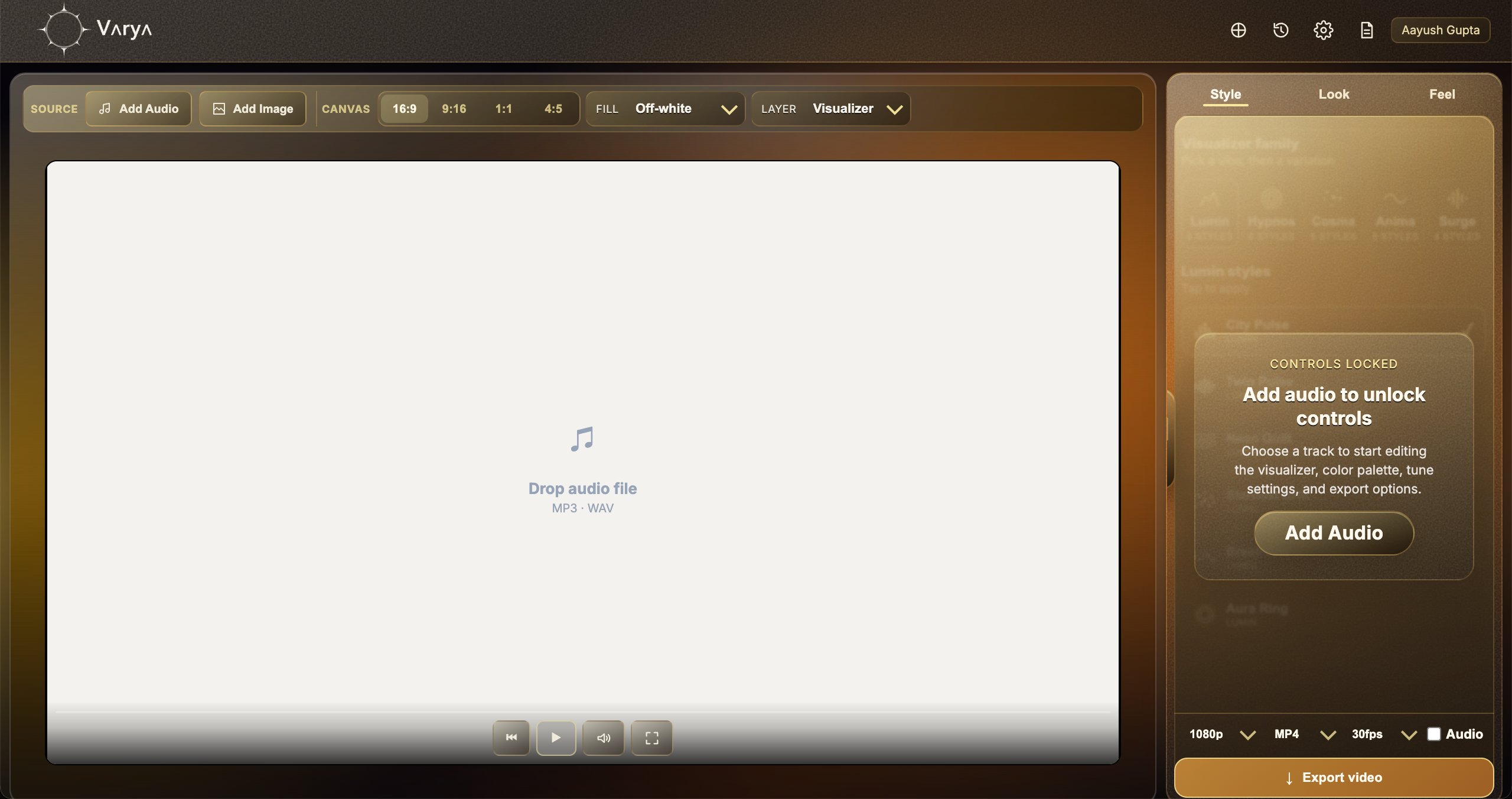
Use the cleanest audio export available to you. Once the song structure is final, bring the file into Varya and let the visualizer react to the actual mix.
Choose a YouTube frame
For a full YouTube video, use 16:9. Add cover art, a background image, or a generated still if the Varya export will be the complete video. If you also need a short teaser, create a separate 9:16 version instead of cropping the landscape export.
AI songs can feel more intentional when they have a consistent visual identity. Use artwork and palette choices that match the mood of the prompt, lyrics, or genre.
- Use 16:9 for the full YouTube upload.
- Use 9:16 for Shorts or social teasers.
- Use artwork when the visualizer is the finished video.
- Check the AI music platform's rights and publishing terms before posting.
Make the motion support the song
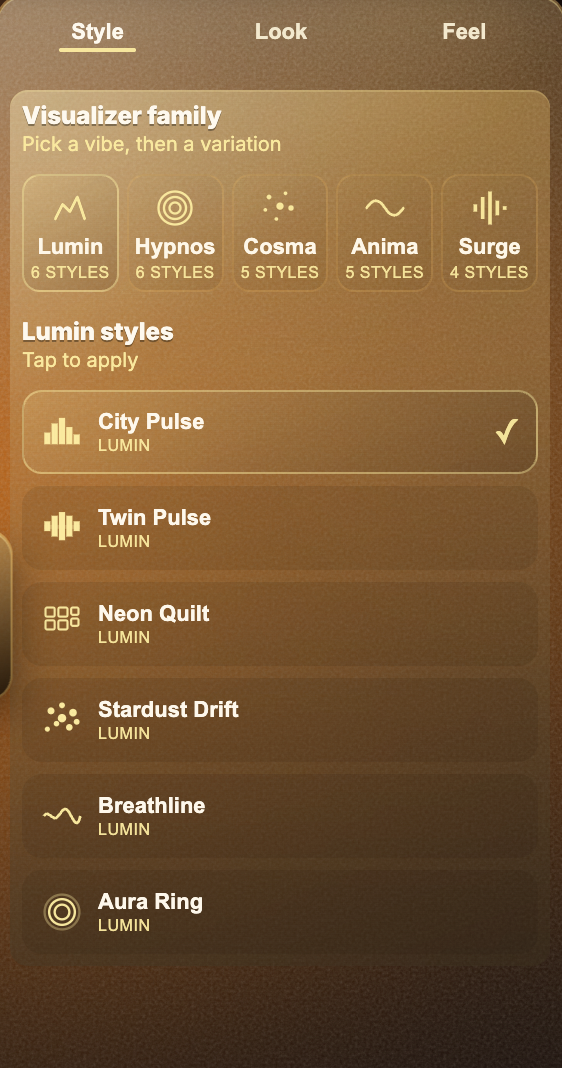
A Suno song may have vocals, sections, drops, or unusual genre blends. Pick a visualizer style that supports the track rather than overpowering it. Use stronger beat impact for high-energy hooks and softer motion for emotional or vocal-led tracks.
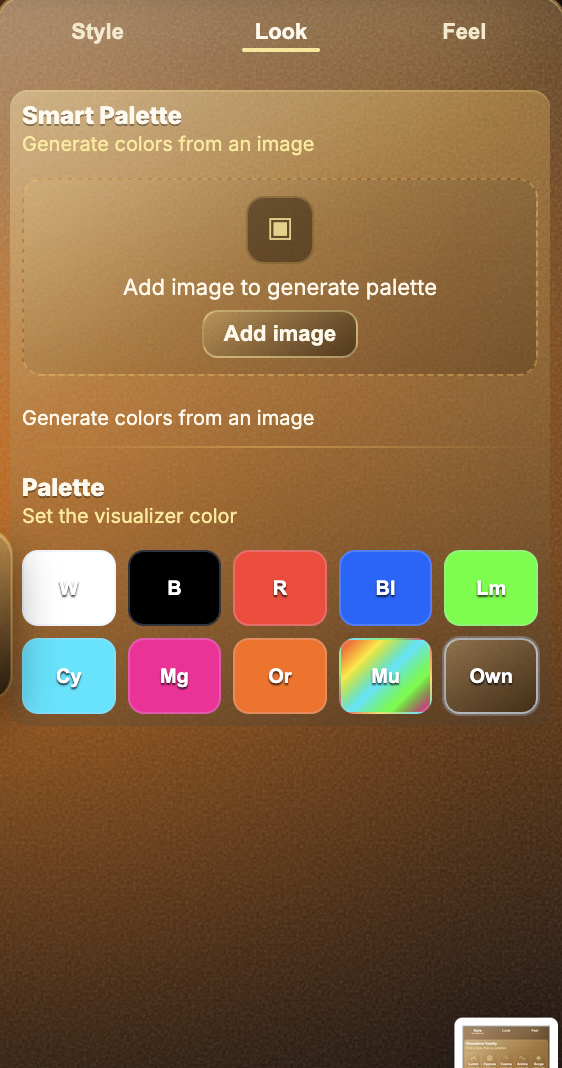
If the song has a generated cover image, Smart Palette can help the visualizer inherit colors that sit naturally with the artwork.
Export the YouTube video
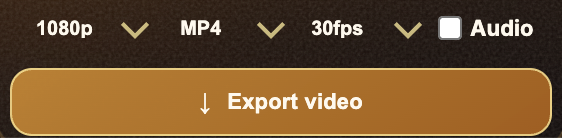
Export MP4 with audio enabled when Varya is creating the final YouTube video. Watch the full export before uploading to make sure the audio starts correctly, the motion is readable, and the visual does not cover any important artwork or text.
For a release workflow, you can also create a vertical teaser and an overlay version from the same song.