
How to make a Stable Audio music visualizer
Export your Stable Audio track as an audio file, upload it to Varya, choose a style and canvas, and export an MP4 visualizer. Stable Audio is often used for instrumentals and loops, which work well with audio-reactive visuals because the rhythm carries the video.
Prepare instrumentals and loops
If you made several short generations, arrange them into one finished track in your audio editor first. A visualizer follows the audio it is given, so the structure of the final file is the structure of the video.
Download or render the result as MP3 or WAV.
Pick a style that suits instrumentals
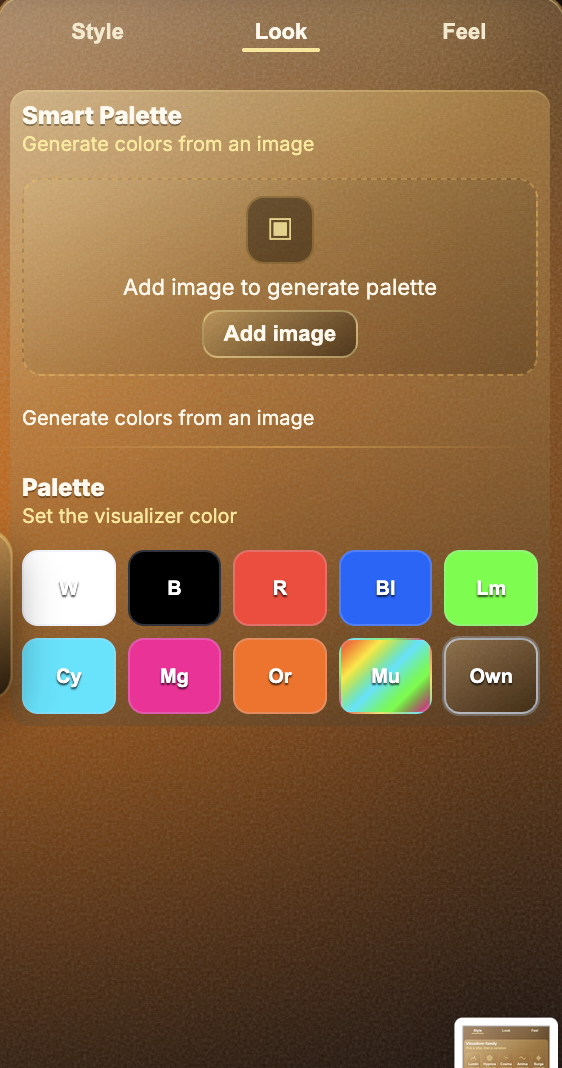
Without vocals, the visuals do more of the storytelling. Spectrum styles show bass and drums clearly, and waveform styles suit melodic or ambient pieces. Add artwork or a title so viewers know what they are listening to.
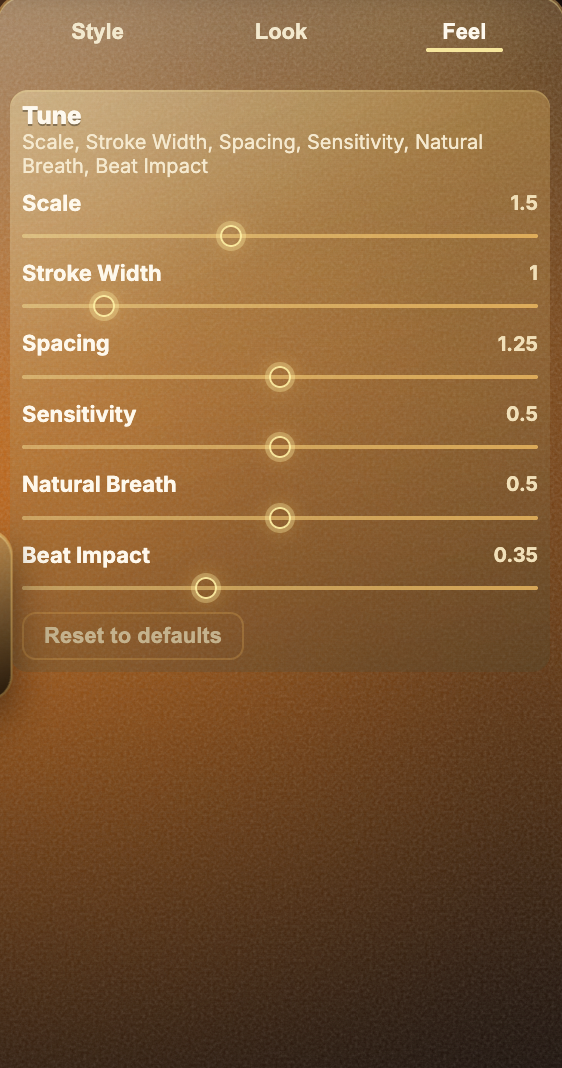
- Beat-heavy tracks: spectrum styles with a stronger Feel setting.
- Ambient or cinematic tracks: smoother motion and softer colors.
- Loop packs and previews: a short 9:16 clip per loop.
Export for the destination
Use 16:9 for YouTube and 9:16 for Shorts, Reels, and TikTok. Free exports reach 1080p; packs and Monthly Pro export up to 4K at up to 90 fps with no watermark. Check Stable Audio's license for your plan before commercial use.

Frequently asked questions
Does Varya work with Stable Audio tracks?
Yes. Any MP3 or WAV file works, including tracks and loops made with Stable Audio.
Which visualizer style suits instrumentals?
Spectrum styles suit beat-driven tracks, and waveform styles suit melodic or ambient pieces.
Can I post the video on YouTube?
Yes, export a 16:9 MP4. Check that your Stable Audio plan allows the use you intend for the music itself.