What an online music visualizer maker should do
An online music visualizer maker should let you start with a finished audio file and quickly turn it into something people can watch. The important workflow is simple: upload the song, choose a visual style, set the canvas size, tune the motion, and export a video that fits the destination.
Varya is built around that workflow. It reads the audio, creates beat-synced motion, lets you add artwork or keep the background clean, and exports files for social platforms, YouTube, and editing tools. The goal is to avoid building every animation by hand in a timeline.
Choose the canvas before styling
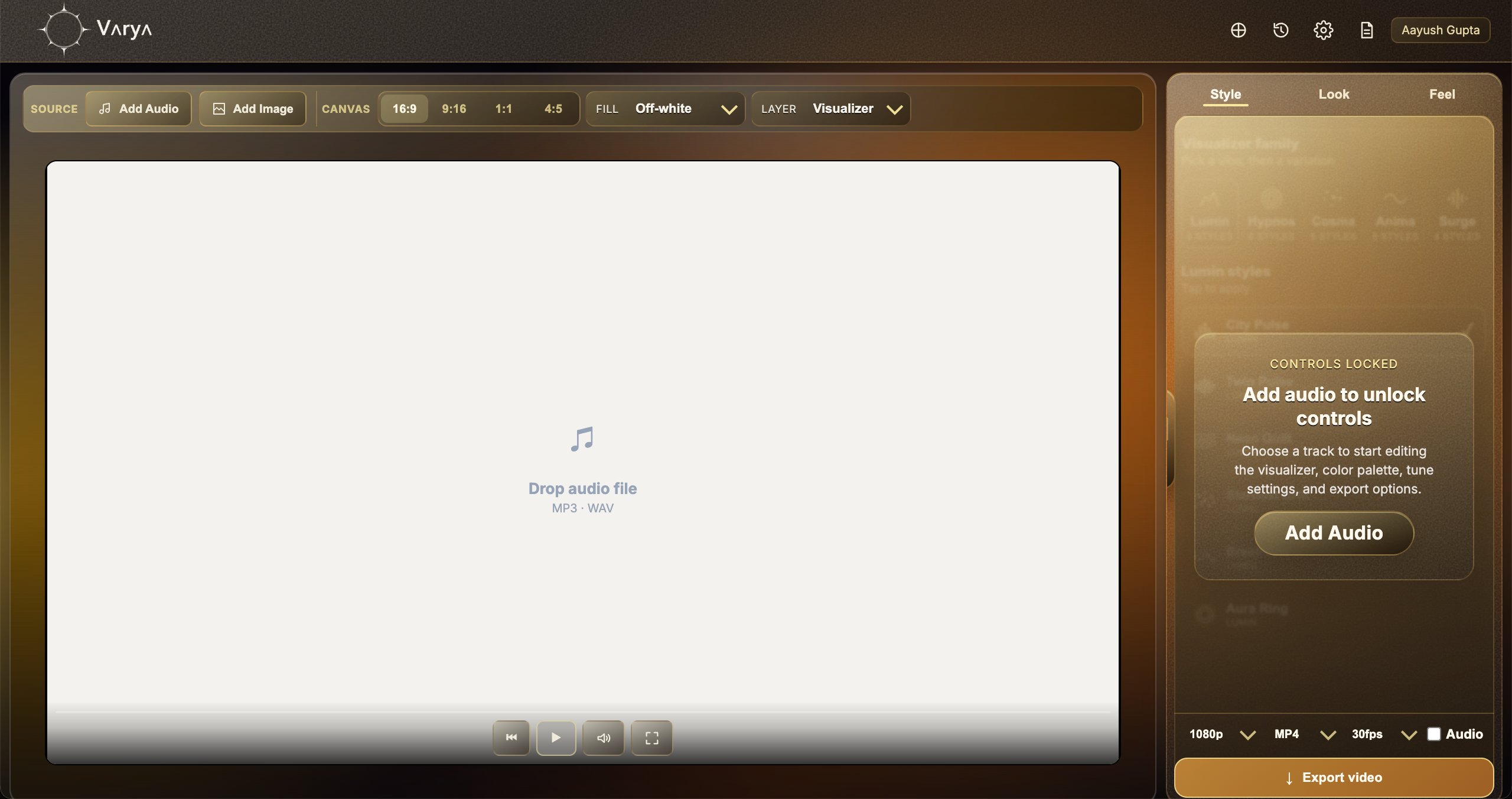
Canvas size decides how the visualizer will feel. Use 16:9 for a normal YouTube video, 9:16 for Shorts, Reels, and TikTok, 1:1 for square posts, and 4:5 for portrait feed videos. Choosing this early keeps the visual centered and prevents awkward cropping later.
If the export will be a finished video, add cover art or a background image. If the export will be an overlay for a video editor, keep the scene simple and choose an overlay format later.
- Use 16:9 for YouTube and landscape releases.
- Use 9:16 for mobile-first short-form posts.
- Use 1:1 or 4:5 for feed posts.
- Decide whether you need a finished scene or an overlay before export.

Match the motion to the song
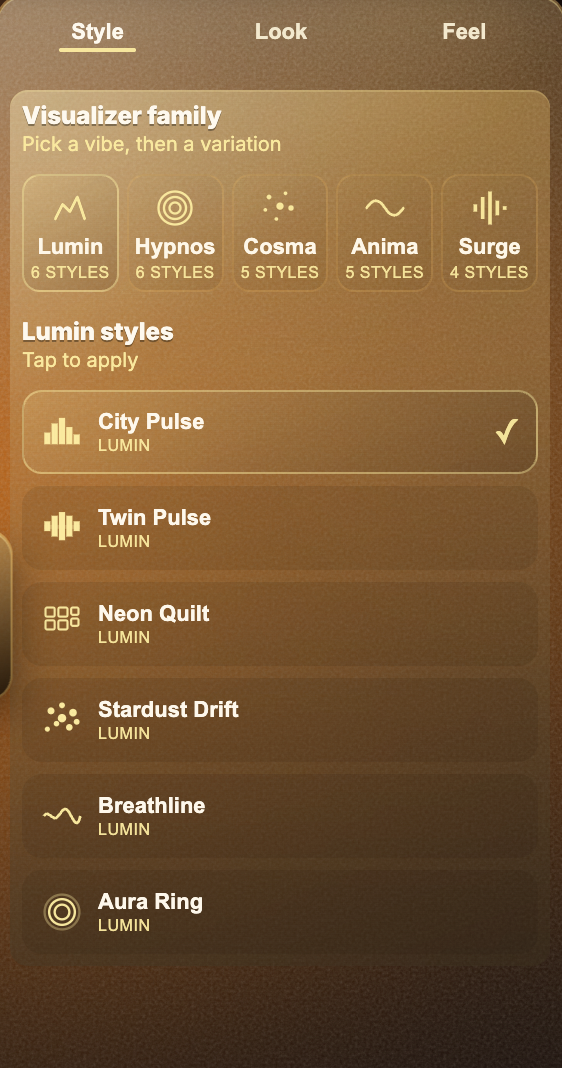
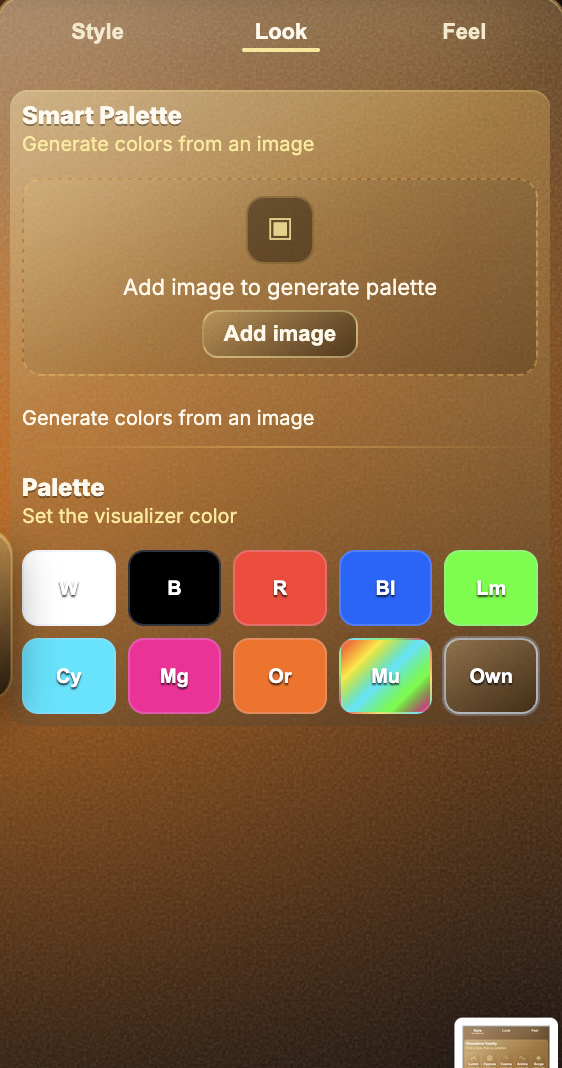
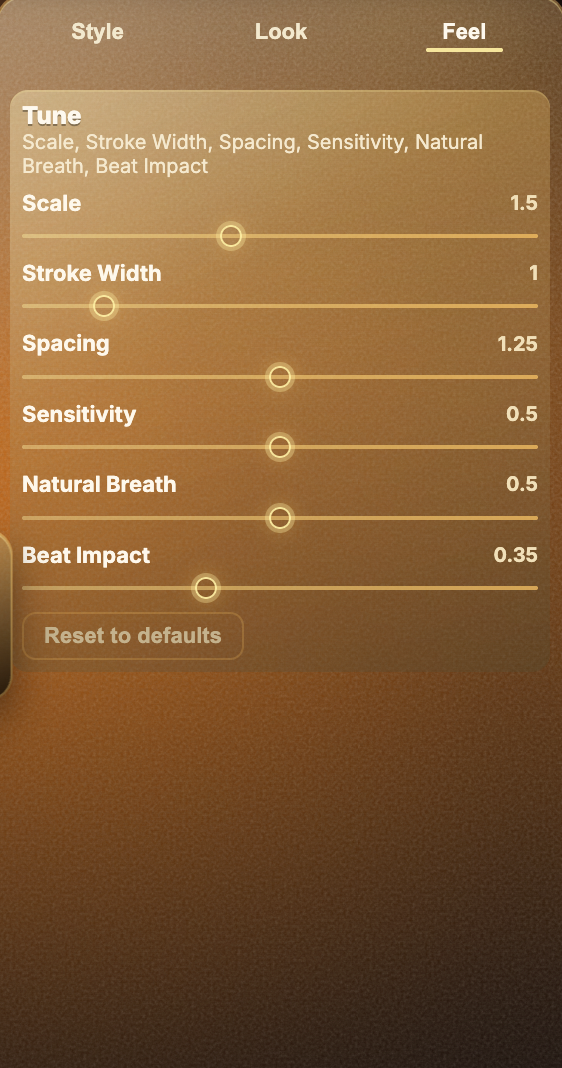
A good visualizer reacts to the music without becoming random noise. Pick a style that matches the track, then tune color, sensitivity, scale, stroke width, spacing, natural breath, and beat impact until the motion feels musical.
For calm songs, softer motion and simpler shapes usually work better. For club, electronic, or high-energy tracks, stronger pulse and brighter color can help the visual carry the energy of the song.
Export based on the next step
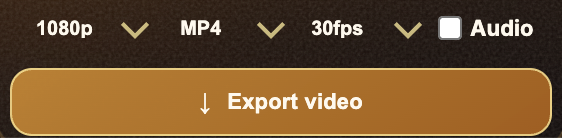
Use MP4 when the file is the finished video for YouTube, Reels, Shorts, TikTok, or quick sharing. Use WebM or ProRes when the visualizer needs transparency. Use MP4 on black plus Screen blending when you need a lightweight overlay and true alpha is not required.
The best format is the one that reduces work after export. If you know where the visualizer is going before you render, Varya can produce a cleaner file for that job.