
Can you use a music visualizer at a live show?
Varya renders visualizer videos from an audio file. It does not listen to live audio. For live use, render a visualizer for each track or for a mix, export it as MP4, and play it on the venue screen, in your VJ software, or as a looping media source in OBS. Because the visuals were made from the actual track, they stay in sync with it.
When a rendered visualizer works best
Rendered visuals suit sets where you know the music in advance: your own songs, a planned DJ mix, a release party, or a stream where you play your catalogue. They look polished and use no computer power during the show.
- Band or artist sets: one video per song, played in setlist order.
- DJ mixes: render the full mix (up to 30 minutes per export on Monthly Pro).
- Release parties: loop the single's visualizer on screens.
- Streams: a looping background behind your camera or chat.
Set up the export for screens
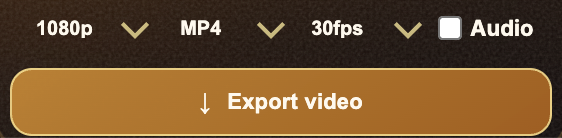
Most venue screens and projectors are 16:9. Export at 1080p or 4K at 30 or 60 fps. Keep important detail away from the edges, since projectors and LED walls often crop slightly. Turn audio off in the export if the sound comes from the mixer instead of the video.
Use it in OBS
In OBS, add a Media Source, choose the exported MP4, and turn on looping. Place it behind your camera or overlay layers. For a stream of one track, start the video and audio together so they stay in sync.
Frequently asked questions
Does Varya react to live audio?
No. Varya renders visualizers from an uploaded audio file. For live shows, render the tracks ahead of time and play the videos.
Can I use a Varya visualizer as an OBS background?
Yes. Export an MP4 and add it to OBS as a Media Source with looping turned on.
How long can a visualizer export be?
Up to 5 minutes on the free plan, 10 minutes with an export pack, and 30 minutes on Monthly Pro.